
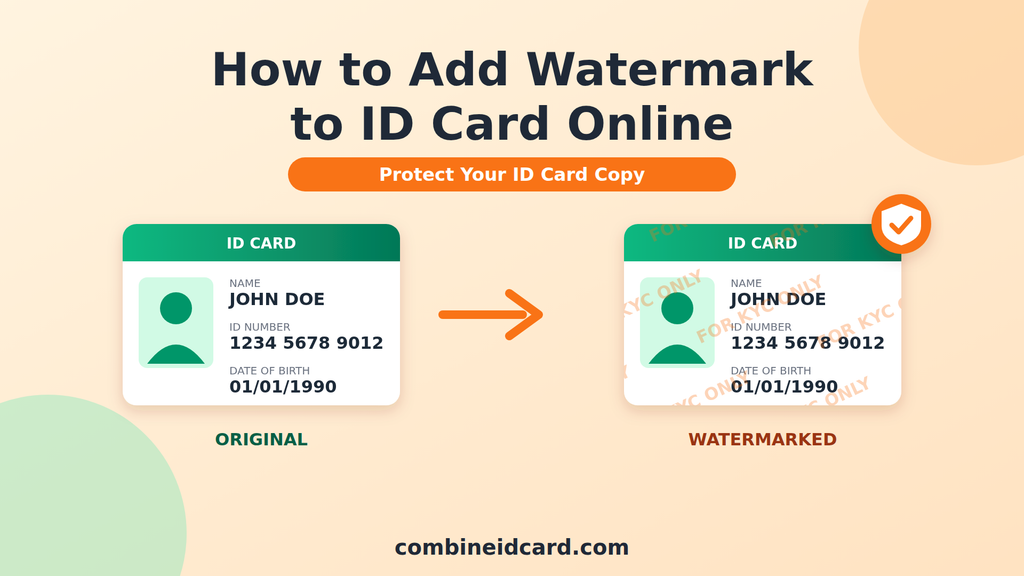
If you want to Add Watermark to ID Card Online before sharing or printing a copy, a clear watermark can indicate how the document image is intended to be used. An ID Card Watermark such as “For Verification Only” or “For Application Use” can help identify a shared copy and discourage some unauthorized reuse.
Whether you have a US state ID, UK driving license, student card, or another identification document, adding a watermark can make its intended purpose clearer. This guide explains how to prepare a Watermarked ID Card Image and what precautions to consider before sharing it.
Why Add a Watermark to an ID Card Image?
Adding a watermark can make the purpose of a shared ID card copy easier to recognize. An ID Card Watermark Tool lets you label an image with a message such as “For Verification Only” or “For Application Use,” helping distinguish it from the original document.
Common reasons to use an ID card watermark include:
- Show intended use: Identify the purpose of a document copy
- Organize applications: Label images prepared for specific requests
- Discourage unauthorized reuse: Make the intended use more noticeable
- Manage business records: Mark copies created for internal processes
- Identify digital copies: Separate watermarked images from original files
Keep in mind that a watermark is only a visual label but It cannot guarantee protection against copying, editing, or misuse, and it does not replace official document verification.
What Should You Write on an ID Card Watermark?
When you Add Watermark to ID Card Online, use a short and accurate message that explains the intended purpose. An ID Card Text Watermark helps label the picture, especially when you need to identify an ID card copy as being prepared for a particular application or recipient.
Examples include:
- For Verification Only
- For Application Use Only
- For Bank Account Application
- For Employment Verification
- For Personal Records Only
- Copy – Not an Original
How to Add Watermark to ID Card Online?
To add a watermark to an ID card online, use an image editor that supports text or image overlays. An Online ID Card Watermark Editor helps label selected pictures, while adding a purpose-specific watermark to an ID card image before sharing it can make the copy easier to identify.
- Prepare your image: Select a clear picture of your ID card
- Choose an editor: Open an image-editing tool that supports watermarking
- Upload the picture: Add your ID card image if required by the editor
- Enter your watermark text: Write a short message that describes the intended use
- Adjust the appearance: Choose a suitable size, position, and transparency if those options are available
- Check readability: Make sure the watermark does not hide essential information unnecessarily
- Preview the result: Review the full image before saving
- Download a copy: Export the watermarked image in a supported format
Tool note: CombineIDCard.com has been described as offering a watermark option for its ID card workflow and use that option if it is available in the current tool interface.
Best Watermark Placement for ID Card Pictures
When you add watermark to ID card online, placement matters because the message should be visible without unnecessarily hiding important details. An ID Card Image Watermarker helps position the text, especially when you need to mark an identification picture while keeping its required information readable.
Consider these placement tips:
- Place the watermark in an area that does not cover essential details
- Use a readable font size
- Choose a contrasting but not overpowering appearance
- Keep the message short
- Review the front and back separately if both sides are being marked
- Check the final image at its normal viewing size
Text Watermark vs. Image Watermark
When you add watermark to ID card online, you can use either text or an image overlay. An ID Card Watermark Editor helps label a document copy with a clear purpose or visual mark.
| Feature | Text Watermark | Image Watermark |
|---|---|---|
| Format | Words or short phrases | Logo or graphic |
| Examples | For Verification Only, Personal Copy, For Application Use Only | Company logo or custom graphic |
| Main purpose | Explain the intended use of a copy | Identify a copy with a visual mark |
| Best suited for | Personal documents and application copies | Internal document organization |
| Important consideration | Keep the text short and readable | Avoid misleading official logos or symbols |
Which should you choose?
A text watermark is useful when you want the purpose of a document copy to be immediately clear. An image watermark may be suitable for internal organization, but never use logos or official symbols in a way that suggests government endorsement or document authenticity.
Can You Add a Watermark to Both Sides of an ID Card?
Yes, if your image editor supports editing both pictures. An ID Card Front and Back Watermark Editor helps label separate images, especially when you need to mark both sides of an identification card with the same intended-use message.
For a consistent result:
- Prepare clear pictures of both sides
- Use the same watermark wording
- Keep the appearance consistent
- Avoid covering important information
- Check each side before saving
Tips for Protecting a Watermarked ID Card Copy
When you add watermark to ID card online, remember that a watermark is only one part of document privacy. An ID Card Copy Protection Tool helps label a document, especially when you need to share an identification image with a clear purpose while limiting unnecessary exposure.
- Use a purpose-specific watermark
- Share the copy only with the intended recipient
- Read the recipient’s document requirements
- Avoid uploading sensitive documents to unfamiliar websites
- Check the image editor’s privacy policy
- Store the original document securely
- Do not treat a watermark as a substitute for secure document handling
Final Thoughts on Add Watermark to ID Card online
Adding a watermark can help identify the intended purpose of an ID card copy before it is shared or stored. Use clear wording, choose a suitable position, and make sure the watermark does not hide information required by the recipient.
If you want to arrange both sides of an ID card in one image, visit CombineIDCard.com. You can use the available ID card layout and watermark options to prepare your document copy.
Frequently Asked Questions
Can I add watermark to ID card online?
Yes, Use our add watermark to ID Card online that supports text or image overlays to add a watermark to an ID card picture.
What should I write on an ID card watermark?
You can use a short, accurate message such as “For Verification Only” or “For Application Use Only”, depending on the intended purpose.
Can I make an ID card watermark transparent?
Some image editors provide transparency or opacity controls and check the available settings in your chosen tool.
Can I add a watermark to both sides of an ID card?
Yes, Our add watermark to documents tool supports both images and apply consistent wording and review each side separately.
Does a watermark prevent someone from copying my ID card?
No, A watermark may discourage unrelated reuse, but it cannot guarantee that an image will not be copied, edited, or misused.
Can I add a watermark to a Green Card or driving licence copy?
You can mark a personal copy where appropriate, but check the receiving organization’s instructions. Some verification processes require an unaltered image.
- How to Print ID Card Front and Back on One Page IN 2026 – Free Online Guide
- How to Merge Aadhaar Card Front and Back on One Page Online in 2026 – Free JPG & PDF
- How to Combine ID Card Front and Back on Android and iPhone in 2026 – Free Online Tool
- How to Combine PAN Card Front and Back on One Page Online in 2026 – Free JPG & PDF
- How to Convert ID Card to PDF Online in 2026 – Free JPG to PDF Guide