
Merge Driving License Front and Back Online
Need both sides of your driving license in a single layout? Upload the front and back images, arrange them neatly, and download a combined copy in JPG or PDF format for printing, sharing, or keeping your documents organized.
Need to Merge Driving License Front and Back into one convenient layout? Instead of keeping two separate images, combine both sides of your driving license into a single file that is easier to save, print, or share when needed. A well-arranged image also makes it more convenient to keep both sides together for your personal records.
Whether you are organizing documents for everyday use or preparing a copy for printing, a driving licence image combiner can help you bring both sides together neatly. This front and back document merger makes it easier to keep your licence images organized in one place, while allowing you to choose a layout that suits your needs.
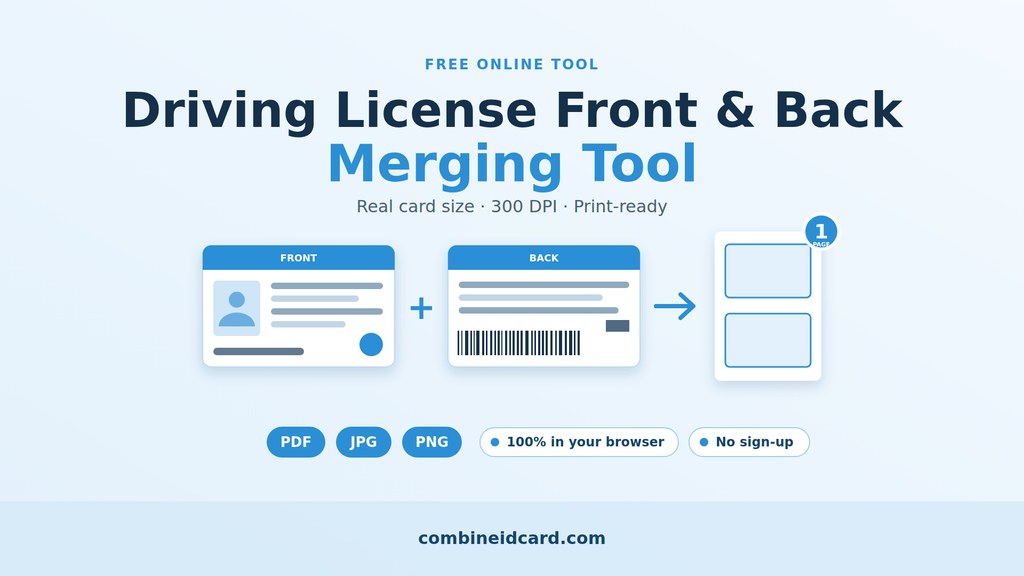
Keeping your driving documents organized can save time when you need to find, print, or share a particular file. Merge Driving License Front and Back to keep both sides together in a convenient format, making your digital records easier to manage whenever you need them.
Different document tasks may require different adjustments, from reducing image size to preparing a printable file. A driving license image editor can help with these tasks, while a combine front and back driving license images into one file tool is useful when you want both sides arranged together. Visit our Combine ID Card homepage to explore more online tools for managing ID card images and everyday document needs.
Why Would You Need to Merge Driving License Front and Back?
A driving licence contains information on both sides, and keeping two separate images can sometimes make document sharing less convenient. Combining them into one layout helps you keep the front and back together for personal records, printing, or situations where a single image is easier to manage.
With Merge Driving License Front and Back, you can bring both sides into one organized layout instead of handling separate files. A driving license image combiner is useful when you need to put the front and back of a driving license on one page, while a digital document organizer can help you keep your files easy to find.
Common Reasons to Combine Driving License Images
| Purpose | How a combined image helps |
|---|---|
| Personal records | Keeps both sides together in one file |
| Printing | Makes it easier to arrange both sides on a page |
| Online document sharing | Provides one image instead of two separate uploads |
| Digital storage | Helps keep licence images organized |
| Document preparation | Makes both sides easier to review together |
How to Merge Driving License Front and Back Online?
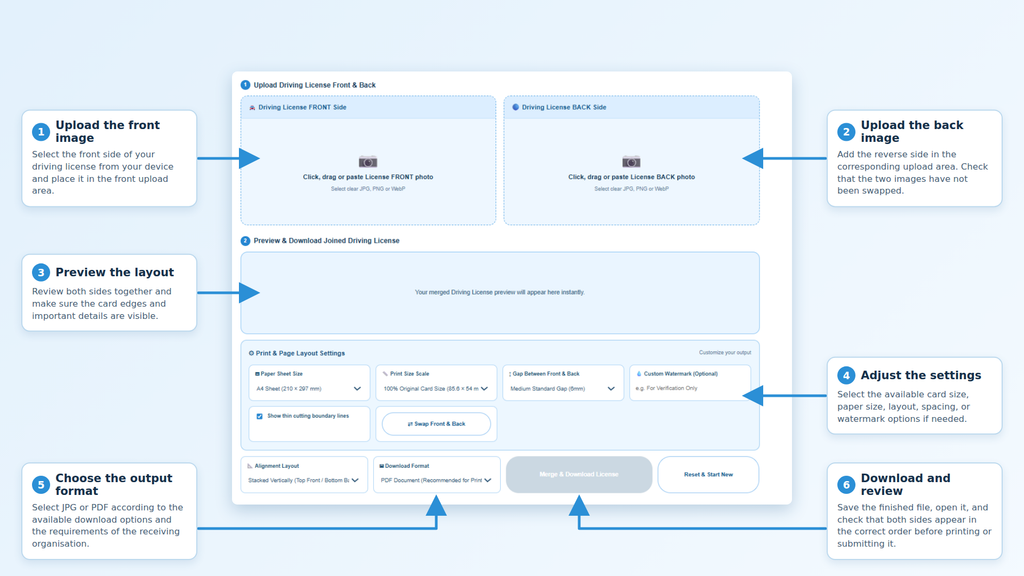
Use Merge Driving License Front and Back to arrange your two images in one layout, provided the tool supports this function. An online driving license merger can help you combine front and back driving license photos into one image without needing to arrange the pictures manually in a separate design application. This simple image combination process can make your document easier to store and share.
- Prepare both images: Take or select clear pictures of the front and back of your driving license
- Upload the front image: Choose the image showing the front of the licence
- Upload the back image: Add the second image so both sides are available
- Choose a layout: Select a vertical or horizontal arrangement if the tool provides these options
- Check the preview: Confirm that the text, photograph, licence number, and edges are visible
- Download the result: Save the combined image in one of the formats supported by the tool
Vertical vs. Horizontal Driving License Layout
Different situations call for different image arrangements. A vertical layout places one side above the other, while a horizontal layout places both images side by side. The right choice depends on the shape of your licence, the available page space, and how you intend to use the file.
When you Merge Driving License Front and Back, choose a layout that keeps both sides easy to view. A driving license layout tool can help you place both sides of a driving license side by side or vertically, depending on its available settings. A suitable document layout option should preserve the proportions of the original images rather than stretching them.
| Layout | Best suited for | Main consideration |
|---|---|---|
| Vertical | Documents arranged from top to bottom | Creates a taller image |
| Horizontal | Side-by-side comparison | Requires more width |
| Print-page layout | Preparing a document for printing | Check margins and page size |
| Original proportions | Keeping the licence looking natural | Avoid stretching or distortion |
How to Get a Clear Combined Driving License Image
A combined image is most useful when the important details remain clear and the original licence proportions are preserved. Even a well-arranged layout can become difficult to read if the source photos are dark, out of focus, or compressed too heavily.
After you Merge Driving License Front and Back, inspect the final preview at a comfortable zoom level. A driving license image quality tool may help with supported image adjustments, while the goal of combining driving license images without losing text clarity is to preserve the readability of the original photos. Good image preparation starts with clear source images and careful review before downloading.
Tips for Better Image Quality
- Use clear photographs taken in good lighting
- Keep the entire licence visible, including its edges
- Avoid glare from lights or camera flash
- Place the licence on a plain, contrasting surface
- Do not stretch either side to force a particular layout
- Check small text and numbers in the final image
- Avoid excessive compression if the file needs to be printed
JPG vs. PDF for a Combined Driving License
JPG and PDF files serve different purposes, so the best format depends on how you plan to use your combined licence. JPG is an image format that is convenient for viewing and sharing, while PDF is often useful when preparing documents for printing or attaching to an application.
When you Merge Driving License Front and Back, select the output format according to your needs and the options available in the tool. A driving license file converter may help you prepare a supported format, while saving both sides of a driving license as one JPG or PDF can make document handling more convenient. The right file format also depends on the instructions of the organization receiving the document.
| Feature | JPG | |
|---|---|---|
| File type | Image | Document |
| Quick image sharing | Often convenient | Also suitable |
| Printing | Suitable for image printing | Useful for page-based printing |
| Page layout | Image dimensions determine the result | Can preserve a defined page layout |
| Best choice | When an image file is requested | When a PDF document is requested |
Which format should you choose? Use JPG when an image is requested and PDF when the recipient specifically asks for a PDF. Confirm that your tool supports the format you need before starting.
Common Problems When Combining Driving License Images
Sometimes the combined result does not look as expected, even when both images upload successfully. The cause may be a low-quality source photo, an unsuitable layout, different image dimensions, or an issue with the download process.
If you use Merge Driving License Front and Back and notice a problem, check the preview and the original files before trying again. A driving license image editor may offer options to correct the layout, and these troubleshooting tips for merging driving license front and back images can help you identify common issues. A simple image quality check before downloading can prevent avoidable mistakes.
| Problem | Possible cause | What to try |
|---|---|---|
| One side is missing | Only one image was uploaded | Check that both images appear in the preview |
| Text looks blurry | The source image is unclear | Upload a sharper photo |
| Licence edges are cut off | The image was cropped too tightly | Use a photo showing the complete licence |
| Images look stretched | The aspect ratio was changed | Preserve the original proportions |
| File is too large | The source images have large dimensions | Use a supported compression option if available |
| Download does not work | Browser or tool issue | Try again and check your browser’s download settings |
Is It Safe to Combine and Share a Driving License Image?
A driving licence can contain personal information, so consider who will receive the combined image and why it is needed. Sharing a complete copy may be appropriate for some official processes, while other situations may require only selected details.
Before you Merge Driving License Front and Back for sharing, check the recipient’s instructions and avoid exposing information that is not required. A driving license privacy tool may help you conceal selected details when permitted, and how to prepare a driving license image for safe sharing starts with understanding what the recipient actually needs. Good personal data protection also means using trusted websites and keeping your original documents secure.
Privacy Tips Before Sharing
- Share your license only with a trusted recipient for a clear purpose
- Check whether an unedited copy is required for official verification
- Conceal unnecessary details only when the recipient permits it
- Use a reliable method of redaction if sensitive information must be hidden
- Review the final file before sending it
- Avoid posting a complete driving licence publicly on social media
Final Tips for Combining Your Driving License Front and Back
Keeping both sides of your driving license in one file can make everyday document management more convenient. Start with clear images, select a suitable layout, and check the saved result to make sure the important details remain visible.
With Merge Driving License Front and Back, the aim is to create a neat, readable copy that suits your intended use. A driving license image combiner can simplify the arrangement, while combining both sides of a driving license for printing or digital records helps keep related images together. Before submitting or sharing the file, confirm the required format and follow the recipient’s instructions.
Frequently Asked Questions
How Can I Merge Driving License Front and Back Online?
Upload the front and back images to a tool that supports combining driving license photos and choose your preferred layout, check the preview, and download the combined file in a supported format.
Can I Combine Both Sides of My Driving License Into One Image?
Yes, you can merge driving license front and back into one image using an image-merging tool and arrange the front and back vertically or horizontally, depending on the available layout options.
How Do I Put the Front and Back of a Driving License on One Page?
Upload both images to a suitable tool and select a layout that places them together on one page and check that the license details remain readable before saving or printing the result.
Can I Merge Driving License Front and Back on My Mobile Phone?
Yes, you can Merge Driving License Front and Back as our tool is also compatible for mobile phones web browser. Select the two images, arrange them in the desired layout, and save the result if the tool supports mobile downloads.
Can I Save a Combined Driving License as JPG or PDF?
Yes, our tool support to save merged driving license as pdf or jpg. JPG is useful when an image file is required, while PDF is often convenient for printing and document submission.
How Can I Merge Driving License front and back Without Cutting Off the Edges?
Use complete images that show the entire license, including all four edges and review the preview before downloading, and avoid cropping or stretching the images unnecessarily.
Can I Blur Sensitive Details Before Combining My Driving License Images?
Yes, our tool supports blurring or redaction. Conceal only the information you are permitted to hide, and remember that some official verification processes require an unaltered license.
What Should I Do If the Driving License Download Does Not Work?
Check that both images have uploaded successfully and that your browser allows downloads. You can also refresh the page and try again and if the issue continues, try another compatible browser.