Combine CNIC Front and Back on One Page
Merge Both Sides of Your CNIC or Smart Card Online, Resize Images, and Download Print-Ready JPG or PDF Files.
Need a convenient way to put both sides of your CNIC together? Combine CNIC Front and Back Online makes it easier to arrange the front and back images of your Pakistani identity card in one document. Instead of keeping two separate pictures, you can create a single layout that is easier to save, print, or share when required.
Upload the ID Card front and back files online, check their placement in the preview, and select the settings that suit your needs. You can arrange both sides vertically or side by side, adjust the layout, and download the finished copy in a supported format. Whether you need a digital record or a physical copy, the tool helps you prepare both sides in one place.
What Does Combine CNIC Front and Back Online Mean?
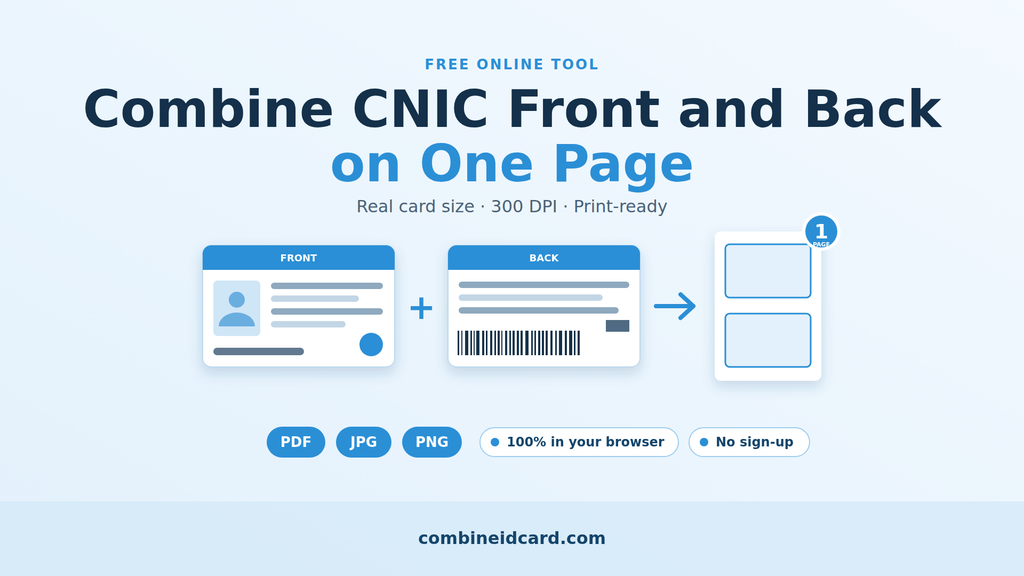
Combine CNIC Front and Back images Online means placing the front and back images of your Pakistani CNIC together in one organized layout. Instead of handling two separate pictures, you can prepare a single image or document that is easier to save, print, and share when required.
The front usually contains your photograph and personal details, while the reverse side contains additional identity information. Keeping both sides together can make document preparation more convenient for applications, office records, and personal use. The final format and layout should always follow the instructions of the organisation requesting your CNIC copy.
How to Combine CNIC Front and Back Online?
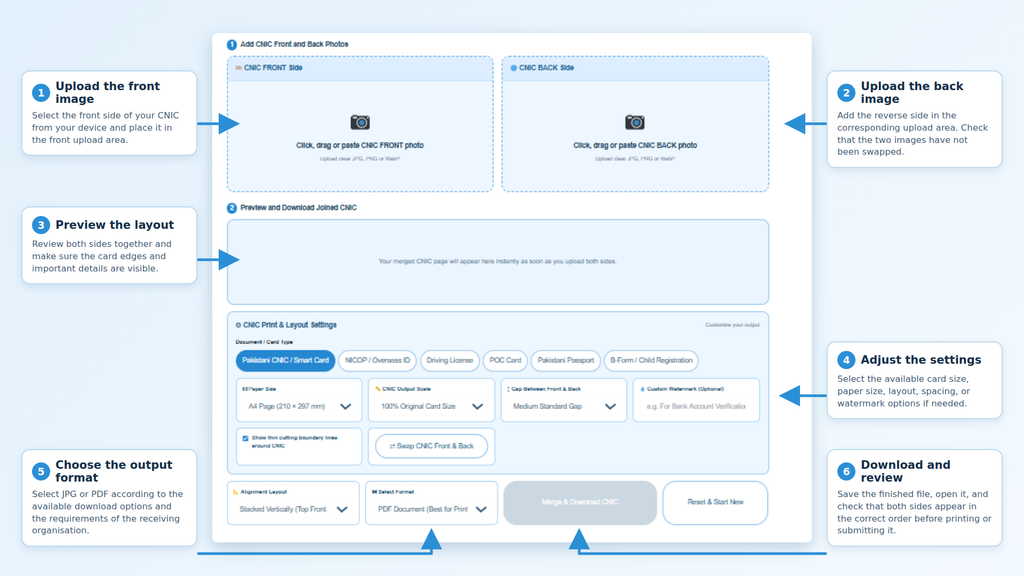
You can prepare a combined CNIC front and Back sides copy in a few simple steps. The aim is to keep both sides correctly positioned, readable, and suitable for your intended use.
- Upload the front image: Select the front side of your CNIC from your device and place it in the front upload area
- Upload the back image: Add the reverse side in the corresponding upload area. Check that the two images have not been swapped
- Preview the layout: Review both sides together and make sure the card edges and important details are visible
- Adjust the settings: Select the available card size, paper size, layout, spacing, or watermark options if needed
- Choose the output format: Select JPG or PDF according to the available download options and the requirements of the receiving organisation
- Download and review: Save the finished file, open it, and check that both sides appear in the correct order before printing or submitting it
If the CNIC Front and Back sides appear in the wrong order, use the tool’s swap option if available, or place the images in their correct upload areas again.
Combine CNIC Images Without Losing Important Details
A well-arranged document starts with clear source images – when you combine CNIC images, the tool can arrange the pictures, but the result still depends on their original quality. A blurry photograph or a cropped card may remain difficult to read after merging.
For a better result, follow these practical tips:
- Place the card on a flat surface with a plain background
- Use sufficient light and avoid reflections across the card
- Keep all four corners inside the photograph
- Hold your phone steady and capture the card from directly above
- Make sure the front and back images have the correct orientation
- Check the preview for cropped text, shadows, or excessive empty space
Avoid stretching the images to fill a frame and keeping their proportions intact helps the card look natural and prevents text and photographs from appearing distorted.
Common Image Preparation Mistakes
| Problem | Why it matters | What to do |
|---|---|---|
| Blurry source image | Small text may be difficult to read | Take a clearer photograph |
| Cropped card edges | Important information may be missing | Capture the complete card |
| Uneven lighting | Glare can hide printed details | Use soft, even lighting |
| Incorrect orientation | The card may appear sideways or upside down | Rotate the image before finalising |
| Different image proportions | The two sides may look uneven | Preserve the original proportions |
CNIC Front and Back PDF: Which Format Should You Choose?
A CNIC front and back PDF files is useful when you need both sides in a single document for printing, emailing, or keeping with other records. A JPG image may be more suitable when an online form specifically asks for an image upload.
The best choice depends on the receiving website or organization and always check its accepted file types, maximum upload size, and required dimensions before preparing the final copy.
| Format | Best suited for | What to check |
|---|---|---|
| Printing, emailing, and document-based submissions | Page size and readability | |
| JPG | Image uploads and everyday digital use | Image quality and file-size limits |
| PNG | Situations where a supported image format is preferred | File size and portal compatibility |
Choose the format requested by the recipient rather than assuming that every website accepts all three and if your tool offers only certain download formats, use the options displayed in the tool.
How to Prepare a Readable CNIC PDF
For a clear result, start with sharp front and back images. Select an appropriate page layout, inspect the preview, and open the downloaded PDF before sharing it. If exact physical dimensions matter, check the print settings instead of relying only on how large the card looks on your screen.
A PDF does not automatically make an image clearer or guarantee that a receiving organisation will accept it. The original image quality and the recipient’s requirements still matter.
CNIC Front and Back on One Page Online: Layout and Printing Tips
When you place your CNIC front and back on one page online, the arrangement should suit the purpose of the copy. A vertical layout places one side above the other, while a side-by-side layout places both images next to each other.
| Layout option | When it may be useful | What to check |
|---|---|---|
| Vertical | When both sides need to appear one above the other | Spacing and total page height |
| Side by side | When a landscape arrangement is preferred | Available page width |
| Standard card size | When maintaining the card’s original dimensions matters | Actual printed measurements |
| Larger scale | When a larger visual copy is specifically needed | Whether enlargement is permitted |
The appropriate arrangement depends on the receiving organization’s instructions and do not enlarge the card simply to fill a whole sheet of paper if the document must retain its original physical dimensions.
Tips for Printing Your Combined CNIC
- Open the downloaded file before printing
- Review the page orientation and paper size
- Check whether the print dialogue is set to actual size or fit to page
- If exact dimensions are required, verify the printed result with a ruler
- Confirm that all necessary text remains readable
The printer’s scaling settings can change the final physical size and if a form or institution specifies dimensions, follow those instructions rather than relying on a general print preset.
Combine ID Card Front and Back for Other Supported Cards
The Combine CNIC Front and Back Online workflow may also be useful for preparing other two-sided identity cards when the tool supports them. Select the appropriate card preset, if available, and review the resulting dimensions before downloading.
Examples of card types that a suitable ID card tool may support include:
- Smart CNIC and NICOP cards
- Driving licences
- Student identity cards
- Employee ID cards
- Residence permits
- Other supported two-sided cards
Different documents may have different proportions and requirements and a CNIC preset should not automatically be used for every identity document, and a combined image does not replace the original document or certify its authenticity.
Which Card Settings Should You Use?
| Setting | Purpose | When to adjust it |
|---|---|---|
| Card type | Selects an available document preset | When working with a supported card other than a standard CNIC |
| Paper size | Controls the output page dimensions | When the recipient specifies a particular paper size |
| Layout | Arranges the two sides | When vertical or side-by-side placement is needed |
| Spacing | Controls the gap between the images | When the preview looks too crowded or spread out |
| Output scale | Changes the displayed or printed size where supported | When the required dimensions call for an adjustment |
| Watermark | Adds a purpose label where supported | When an explanatory label is appropriate |
| Cut border | Adds or removes a border where supported | When a clean edge or cutting guide is needed |
Available settings can vary by tool and use only the controls shown in your version, and check the preview after changing them.
Merge ID Card Images Online for Clear Digital Copies
When you merge ID card images online, the goal is to produce a tidy layout without making the original information difficult to read. A clean Combined CNIC Front and Back Online result can be easier to manage than separate files, particularly when both sides are requested together.
Before downloading, check the following:
- Both sides belong to the correct card
- The front and back are in the intended order
- No important edges or details have been cropped
- The selected format meets the recipient’s requirements
- The finished file opens correctly on your device
If the combined document looks blurry, start by checking the original images and increasing the output scale cannot restore details that were not captured in the photograph.
CNIC Copy Maker Online: A Convenient Way to Prepare Your Copy
A CNIC copy maker online helps arrange the images you provide into a single layout, making the result more convenient to save or print. It can reduce the need to position each picture manually in a separate editing application.
Use the available upload areas to add both CNIC Front and Back sides online, select the appropriate layout, and inspect the finished preview. If JPG and PDF downloads are offered, choose the format that matches your intended use.
Remember that a digital copy is still a copy of your supplied images and it does not independently verify identity, replace an official CNIC, or guarantee acceptance by a bank, employer, university, or government department.
Is It Safe to Combine CNIC Front and Back Online?
A CNIC contains personal information, so it is important to consider privacy before uploading or sharing an image. Check the tool’s privacy policy and how it handles uploaded files and do not assume that a browser-based tool processes everything locally unless its implementation and privacy information confirm that.
To reduce unnecessary exposure:
- Use a trusted device and secure internet connection
- Share the document only with a verified recipient who needs it
- Avoid sending an unprotected CNIC Front and Back images to public groups or unknown contacts
- Remove unnecessary copies from shared devices when you have finished
- Consider a purpose-specific watermark if appropriate and permitted
- Keep an original copy in a secure location
A watermark may help explain the intended purpose of a copy, but it cannot guarantee that the image will not be misused and do not cover details that the recipient needs to verify.
Common Problems When Combining CNIC Front and Back
If the finished file does not look right, check the source images, selected layout, and download settings before starting again.
| Problem | Possible reason | Suggested fix |
|---|---|---|
| Front and back are reversed | Images were uploaded into the wrong areas | Swap the images or upload them correctly |
| Card appears too small | The selected scale or page layout is unsuitable | Review the available size settings |
| Text is difficult to read | The source photograph is blurry or too small | Use a clearer original image |
| Card edges are missing | The image was cropped too tightly | Upload a picture showing all four corners |
| File is too large | The selected format or image quality produces a large file | Use a supported format and suitable compression |
| Download does not start | The browser or file-generation process encountered an issue | Try again and check browser settings |
| Upload is rejected by a portal | The file may not meet the portal’s requirements | Check the required format, dimensions, and size |
If a website rejects the final document, review its instructions first and the problem may be related to its upload rules rather than the merging process.
Prepare Your CNIC Copy Carefully
Use Combine CNIC Front and Back Online to organize both sides into a convenient layout, then review the finished file before printing or submitting it. Clear source images, suitable dimensions, and the correct output format can make the document easier to use. Always follow the requirements of the organization requesting the copy and protect your personal information when saving or sharing the file.
Frequently Asked Questions
Can I combine CNIC front and back online for free?
You can prepare a combined layout using the tool’s available features and check the page for any usage limits and the download options currently provided.
How do I merge CNIC front and back images into one file?
Upload the front and back images into their respective areas, choose a layout, inspect the preview, and download the finished file in a supported format.
Can I download a CNIC front and back PDF?
Yes, when PDF is available among the tool’s download options and open the saved document to confirm that both sides appear correctly and remain readable.
Can I put my CNIC front and back on one page online?
Yes, you can put CNIC front and back on one page online – choose a suitable layout in the tool, then review the preview to make sure both sides fit without unwanted cropping.
Can I combine ID card front and back for a driving licence?
Yes, the tool supports all the card type both sides – select it and confirm the dimensions before downloading.
What is a CNIC copy maker online used for?
It arranges the front and back images of a CNIC into a single layout for convenient saving, printing, or sharing where accepted.
Will merging CNIC front and Back online reduce their quality?
No, combining CNIC front and back images on one page online cannot reduce quality – Use clear photographs and check the downloaded file to make sure important text is readable.
What should I do if my combined CNIC looks blurry?
Use a clearer source photograph, avoid glare, and keep the card fully inside the frame and check the final preview before downloading.
Can I place both sides next to each other?
Yes, you can place CNIC front and Back both sides next to each other, use the available arrangement that best matches your intended purpose.