
Combine Aadhaar Card Front and Back Online
आधार कार्ड के Front और Back को एक पेज पर Combine करें। अपना Aadhaar Card JPG या A4 PDF Format में तैयार करें और तुरंत Download करें।
Combine Aadhaar card front and back images online in one layout – Arrange both sides, preview your file, and download your combined Aadhaar card as a JPG or PDF. Whether you need to merge Aadhaar card both sides on one page, resize card images, or prepare a document for printing, these free online tools help you manage common ID card tasks conveniently.
You can also explore tools to combine ID card front and back, create an Aadhaar card JPG or PDF, and prepare other identity documents. Choose the tool that matches your needs and follow the available options to create your desired file.
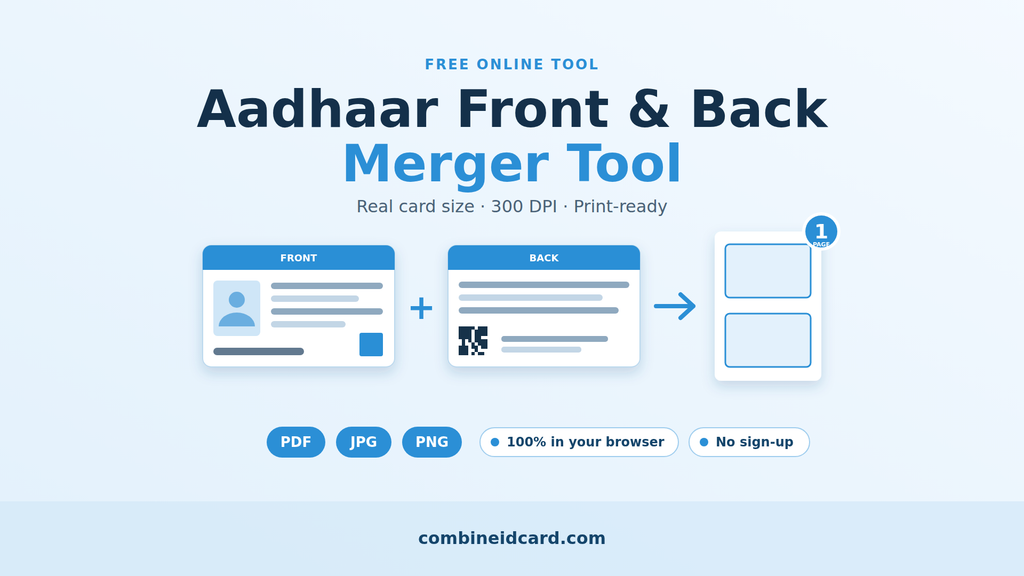
Merge Aadhaar Card Front and Back Online in One Page
To combine Aadhaar card on page online, add the front image first and then upload the back image in the matching field – check the preview to make sure both sides are clear, correctly positioned and easy to read, choose the available JPG or PDF download option according to your needs. If you need a printed copy, check the paper size and print scale before downloading or printing your file.
Combining both sides of your Aadhaar card into one layout makes document preparation easier and more convenient. Use this online tool to combine Aadhaar card front and back online, check the alignment, and download the combined file in JPG or PDF format for printing or submission, depending on the recipient’s requirements.
How to Combine Aadhaar Card Front and Back on One Page?
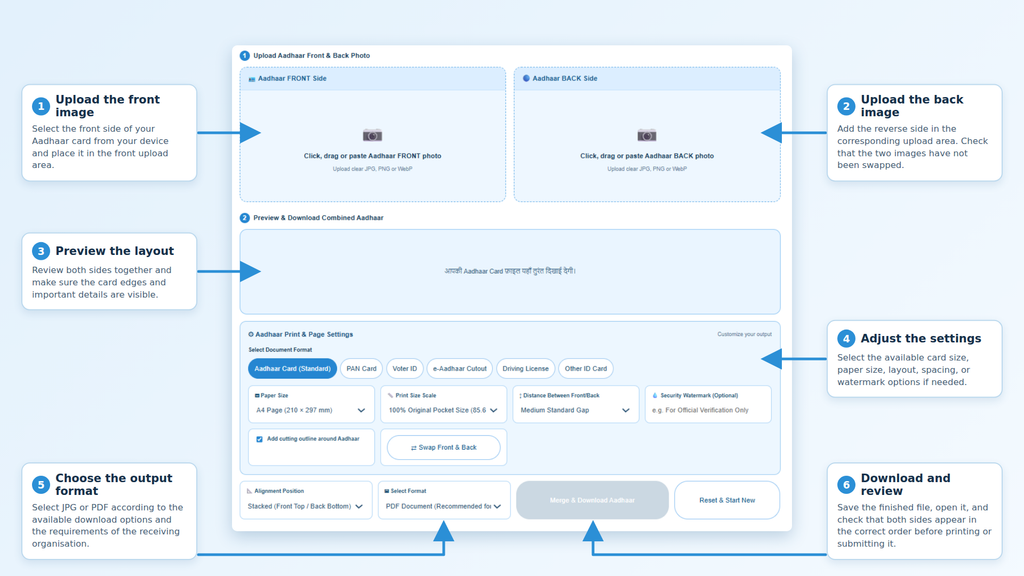
Combining both sides of an Aadhaar card can make it easier to prepare a copy for an application, document submission or personal records. Instead of arranging two separate images manually, use the tool to place them in one layout and review the result before saving it.
Follow these steps to merge Aadhaar card front and back images:
- Upload the front side: Select a clear photo or image of the front of your Aadhaar card
- Add the back side: Upload the reverse image in the back-side field. Make sure you do not accidentally select the same photo twice
- Check the preview: Confirm that both sides appear in the correct order and that the text, photograph and address details remain readable
- Adjust the layout: Choose the available arrangement and size settings to suit your intended use
- Select a download format: Choose JPG for a convenient image file or PDF when you need a document for printing or submission
- Save the finished copy: Download the combined file and open it once to confirm that both sides are included correctly
Using Combine Aadhaar Card Front and Back Online can simplify this task, especially when you need a single file instead of two separate images. Always inspect the final result before sharing it with another person or organization.
Merge e-Aadhaar PDF Pages or Images
You may already have an electronic Aadhaar document rather than separate photographs of a physical card – check whether your tool accepts PDF uploads or requires image files. Some tools accept JPG, PNG or WebP images but do not directly support PDF documents.
If your file is a PDF, open it using a suitable PDF viewer and follow the instructions for extracting or saving the relevant page as an image, where permitted. An e-Aadhaar PDF may be password-protected, so use the official document instructions if you need to open it.
Before uploading anything, check the following:
- Confirm that the PDF opens correctly and contains the intended Aadhaar page
- Use a legitimate PDF viewer or conversion method to create an image if your tool requires combine Aadhaar card front and back on one page online
- Check that the extracted image is clear and has not been cropped incorrectly
- Keep the original document in a safe location
- Never share your PDF password or Aadhaar details with an untrusted service
Once you have compatible images, you can use the available Aadhaar Card Front and Back JPG workflow to arrange both sides in one layout.
Full Aadhaar vs Masked Aadhaar: Which Should You Use?
Combine Aadhaar Card Front and Back Online – before preparing an Aadhaar copy, consider whether the recipient needs your complete Aadhaar number. A full copy may be necessary for certain authorized processes, while a masked Aadhaar can be more suitable when the complete number is not required.
A masked Aadhaar hides the first eight digits of the Aadhaar number and displays only the last four and you can obtain it through the official UIDAI website, check the recipient’s requirements before deciding which version to provide.
| Your situation | Which option to consider | What to check |
|---|---|---|
| A bank or regulated service requests Aadhaar for verification | Follow the organisation’s approved process | Confirm its identification and KYC requirements |
| A general application requests proof of identity | Ask whether masked Aadhaar is accepted | Check the document instructions |
| You need a copy for personal records | Consider a masked version if the full number is unnecessary | Store the file securely |
| You need to submit a document online | Follow the portal’s stated requirements | Confirm accepted formats and file-size limits |
| You are unsure which version to send | Contact the recipient first | Avoid sharing more personal information than necessary |
When you Combine Aadhaar Card Front and Back Online, remember that arranging the images does not change the underlying identity information or make the document valid for every purpose. The receiving organization decides which documents and formats it accepts.
Where Is a One-Page Aadhaar Copy Commonly Used?
A single-page layout can be convenient when a recipient requests both sides of an Aadhaar card in one file. However, requirements differ between organizations, so always follow the instructions provided with your application or form.
| Purpose | Format to consider | Important note |
|---|---|---|
| Online application | JPG, PNG or PDF, depending on the portal | Check the maximum file size |
| Document submission by email | PDF or JPG | Use the format requested by the recipient |
| Personal document records | JPG or PDF | Keep the file in a secure location |
| Printing a physical copy | PDF is often convenient | Check page size and print scale |
| A form with limited upload space | The format specified by the portal | Compress only if necessary and preserve readability |
| A photocopy request | The recipient’s preferred layout | Confirm whether both sides must appear on the same page |
The best format depends on where you plan to use the copy. A file that looks correct on your screen may still need adjustments before printing or uploading.
Print Aadhaar Card Front and Back on One Page
When preparing a printable copy, the goal is to keep both sides readable without stretching, cutting off or unnecessarily enlarging the images. A4 paper is a common choice for document printing, but the correct size depends on the receiving organization’s instructions.
For a better result, review these settings before printing:
- Page size: Select A4 only when it suits the requested document layout
- Print scale: Use Actual Size or 100% when you need to preserve the selected dimensions
- Fit to page: Use this option only when the layout needs to fit within the available printable area
- Orientation: Select portrait or landscape according to the arrangement of both sides
- Preview: Check that the complete card images and important text are visible
- Paper margins: Make sure neither side extends beyond the printable area
If you are using Combine Aadhaar Card Front and Back Online to prepare a print-ready file, remember that selecting A4 paper does not automatically guarantee the original card dimensions. Review the tool’s sizing settings and your printer’s options before printing.
What Do the Combine Aadhaar Card Front and Back Layout Settings Mean?
Different settings can affect the appearance and usefulness of your combined document – Use the options available in your tool to match the intended result.
| Setting | What it does | When it may help |
|---|---|---|
| Card arrangement | Places the front and back vertically or horizontally, if supported | Choose the layout requested by the recipient |
| Card size | Controls the displayed dimensions of the images | Helps prepare a suitable layout |
| Page size | Sets the output page dimensions, if available | Useful when preparing a PDF for printing |
| Image quality | Controls the output quality, if adjustable | Helps preserve readable text |
| Watermark | Adds a visible label, if supported | Can identify a copy’s intended purpose |
| Output format | Saves the result as JPG or PDF, depending on the available options | Choose according to the intended use |
Changing a setting may affect the final layout, so check the preview before downloading – Avoid resizing an image in a way that makes important information difficult to read.
Combine Aadhaar Card Front and Back JPG or PDF: Which Format Is Better?
Both formats can be useful, but they serve slightly different purposes – choose the one that matches the upload form, printing requirements or sharing method.
| Feature | JPG | |
|---|---|---|
| Common use | Image uploads and quick sharing | Document submission and printing |
| File appearance | A standalone image | A document page containing the arranged images |
| Page size | Depends on image dimensions | Can use a defined page size when supported |
| Compatibility | Widely supported by image-upload forms | Widely supported by document portals |
| Before sharing | Check clarity and file size | Check page layout and readability |
Is It Safe to Combine Aadhaar Card Front and Back Online?
When you Combine Aadhaar Card Front and Back Online, protecting your personal information should be a priority. Before uploading your images, check how the service handles your files and whether they are processed in your browser or sent to a server.
- Use a service you trust and understand
- Avoid uploading identity documents over an untrusted public connection
- Use a masked Aadhaar when the full number is not needed and the recipient accepts it
- Do not share an unprotected copy publicly or send it to an unknown person
- Save downloaded documents in a secure location
- Remove unnecessary copies from shared computers and devices
- Check the receiving organization’s requirements before sending the document
Add a Watermark Before Sharing an Aadhaar Copy
A watermark can help show why a document copy was prepared and may discourage casual reuse. If your tool supports watermarking, consider adding a short label that matches the intended purpose.
- For application verification only
- For personal records
- For a specific application or service
- Copy prepared for a named purpose
Avoid placing a watermark over the photograph, Aadhaar number or other important text, because it may make the document harder to read. A watermark is not a security guarantee and does not prevent someone from copying or editing an image.
Tips for Getting Clear Aadhaar Card Images
A good combined document starts with clear source images – If either side is blurry, poorly lit or cropped, Combine Aadhaar Card Front and Back images will not restore the missing details.
- Place the physical card on a flat, plain surface
- Take the photo in good lighting and avoid glare on laminated cards
- Keep the camera parallel to the card rather than taking the picture at a sharp angle
- Include all four edges of the card
- Avoid fingers, shadows or other objects covering the text
- Check that both sides are facing the correct way
- Use the original image when possible instead of a screenshot of a compressed image
- Preview the combined file at a readable size before saving it
Common Problems of Combine Aadhaar Card Front and Back Images Online
| Problem | Possible reason | What to try |
|---|---|---|
| The front and back appear in the wrong order | Images were uploaded into the wrong fields | Switch the images and review the preview |
| The card looks too small on A4 | The layout preserves the card dimensions | Check the size and print-scale settings |
| Text appears blurry | The source photo has low resolution or the output was compressed | Use a clearer original image |
| The edges are cut off | The photo was cropped too tightly | Upload an image that includes the full card |
| The PDF is too large | Images contain more data than the portal allows | Use a supported compression option without making the text unreadable |
| The website does not accept the file | The portal does not support the selected format or size | Check its upload instructions |
| The PDF will not open | The file may be incomplete or unsupported | Download it again and open it in a suitable PDF viewer |
| The layout changes after printing | Printer scaling or page settings differ from the preview | Review the page size and print scale |
When troubleshooting Merge Aadhaar Card both sides Online, make one adjustment at a time and check the preview again. This makes it easier to identify which setting solves the problem. With Combine Aadhaar Card Front and Back Online, you can prepare a combined copy more conveniently while keeping readability, privacy and the receiving organization’s requirements in mind.
Prepare Your Aadhaar Copy Carefully
A clear one-page copy can make identity-document preparation more convenient, but the correct layout and file type depend on your needs. Use the available tool settings to arrange both sides, check the final image and choose JPG or PDF according to the recipient’s instructions.
Frequently Asked Questions
Can I combine Aadhaar card front and back online for free?
You can use this tool to arrange both sides in one layout, subject to the available features and usage limits and check the tool interface for the supported upload and download options.
Can I merge Aadhaar card front and back into one image?
Yes, the tool supports combine Aadhaar card front and back into one image output. Upload the front and back images, review their arrangement and select JPG when that format is available.
Can I download combined Aadhaar front and back as a PDF?
If PDF export is available, you can select it after arranging both sides and check the resulting page before printing or submitting the document.
Can I use a masked Aadhaar with this tool?
You can use a masked Aadhaar if the tool accepts its file format and whether the masked version is suitable for your application depends on the receiving organization’s requirements.
Will combine Aadhaar card front and back both sides reduce image quality?
No, Combining images does not necessarily reduce quality, but resizing or compression may affect sharpness – start with clear images and check the downloaded file before using it.
Is my Aadhaar information stored when I use an online merger?
That depends on how the particular tool is built – review its privacy policy and verify whether images are processed in your browser or transmitted to a server before uploading sensitive documents.
How can I print both Aadhaar card front and back on A4 paper?
Choose an A4 layout if the tool supports it, download the file and check the print preview – select the appropriate page scale and confirm that both sides are readable.
Why is my combined Aadhaar card not accepted by a website?
The portal may require a particular file type, file size, document layout or verification process, check the upload instructions and prepare the file accordingly rather than assuming that every portal accepts the same format.