
Convert ID Card to PDF Online
Convert ID Card to PDF online with ease. Combine ID card images, arrange both sides, and prepare a PDF for printing or digital records.
Need a simple way to keep your ID card pictures together in a printable file? ID Card to PDF makes it easier to prepare a digital copy of your identity document for personal records, paperwork, or printing. Whether you have a single card image or separate pictures of the front and back, arranging them into one document can help keep everything organized and convenient to access.
A reliable JPG to PDF converter can help turn image files into a document format that is easy to save and share, while a PNG to PDF converter is useful when your ID card pictures are saved as PNG files. Choose a layout that keeps the card clear and readable, and check the final page before printing or sending it to anyone.
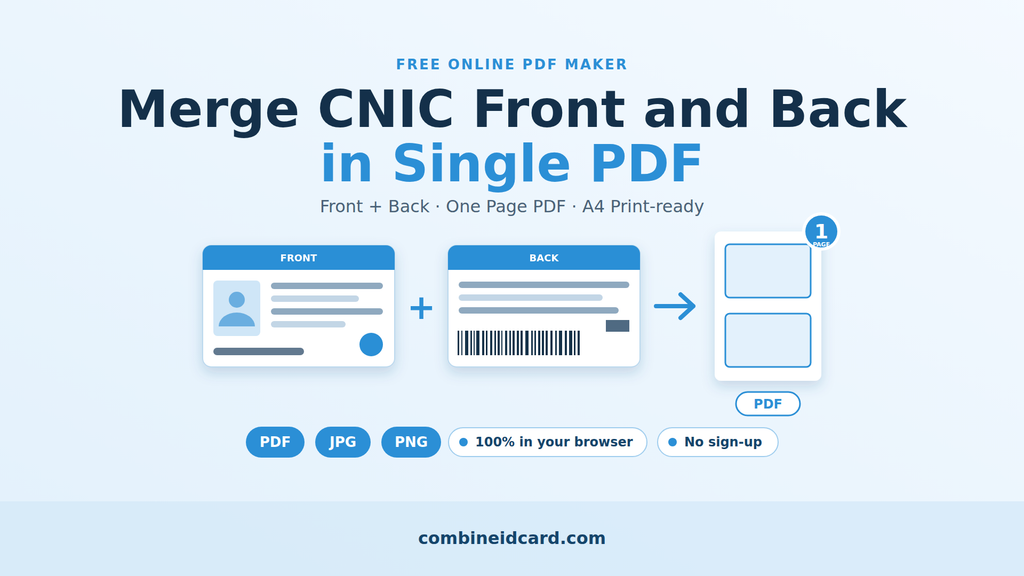
Preparing identity documents for different purposes becomes easier when your files are properly arranged and easy to access. ID Card to PDF is a practical option for keeping a digital copy ready for printing, attaching to paperwork, or storing with other important documents. Before sharing the file, check that the card details are readable and that the document follows the recipient’s requirements.
Different tasks may call for different image tools, whether you need to adjust dimensions, protect private details, or organize multiple pictures. An ID card image converter can help with document preparation, while learning how to combine ID card front and back into one PDF for printing can help you create a more organized copy when both sides are required. Visit homepage to explore more useful tools for managing and preparing identity card images.
What Does ID Card to PDF Mean?
ID Card to PDF refers to converting an identity card picture into a PDF document that is easier to save, print, or share digitally. Instead of managing your ID card only as a JPG or PNG image, you can place the picture in a document format that works well for everyday paperwork. Depending on the tool’s features, you may also be able to arrange the front and back images together, making it more convenient to keep both sides in one file.
PDF is commonly used for digital documents because it helps maintain a consistent page layout across different devices and applications. However, the final appearance depends on how the image is positioned and scaled during conversion. Choosing an appropriate page size and checking the preview can help you prepare a clean document without cutting off important details. An ID card image to PDF converter can be useful when you need to organize image files into a document for printing or storage.
Why Convert an ID Card Image into PDF?
Converting an ID card image into PDF can make document management easier when you need to keep personal records, prepare paperwork, or attach a file to an online form. ID Card to PDF conversion allows you to place an image in a format that is convenient to save and share when PDF files are accepted. A single document can also keep related images together instead of requiring you to manage multiple files separately.
For people who need a printable copy, learning how to convert an ID card image into an A4 PDF for printing can help them understand page size, image placement, and print scaling. Selecting A4 creates a standard-sized page, but it does not automatically preserve the card’s original physical dimensions. Review the page layout and print settings before printing, especially when exact measurements are required.
How to Convert an ID Card to PDF Online?
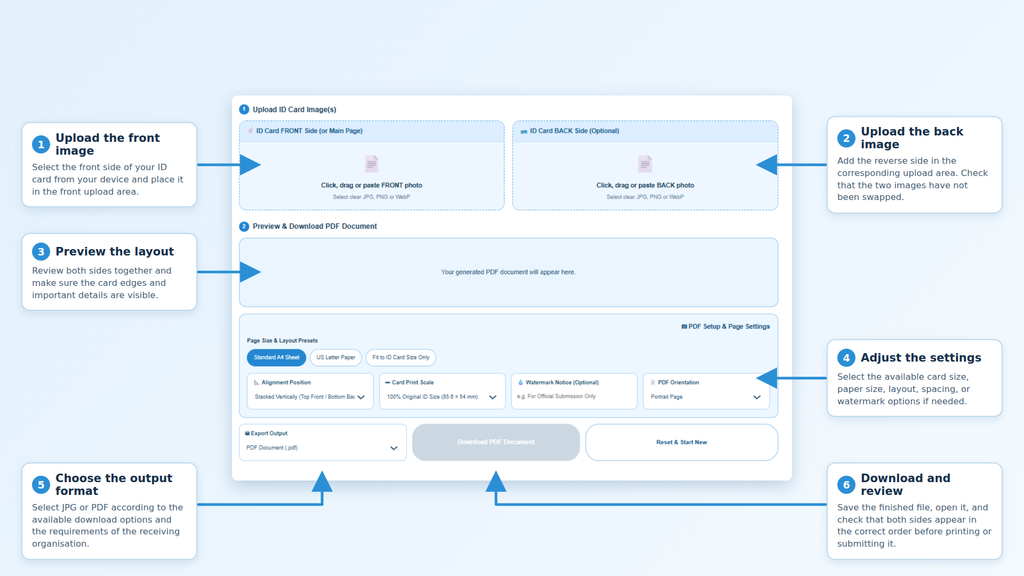
Converting an ID card image into a PDF is simple when you have clear pictures and choose the right page layout. Follow these steps to prepare a neat document for printing, sharing, or keeping your personal records organized.
- Step 1: Upload Your ID Card Image — Select a clear JPG or PNG image of your identity card. Make sure the card is fully visible and important details are not cropped
- Step 2: Add the Front and Back Images — If you need both sides in one document, upload the front and back images when the tool supports multiple images. Check that each side is oriented correctly
- Step 3: Choose the Page Layout — Select a suitable arrangement for your images. A vertical layout may work well for stacking both sides, while a horizontal layout can place them next to each other
- Step 4: Set the Paper Size — Choose A4 or another available page size according to your requirements. If you need a specific printed card size, check the dimensions and scaling settings before proceeding
- Step 5: Preview Your PDF — Review the images for clarity, correct orientation, spacing, and missing edges. Make sure the text remains readable and the card is not stretched
- Step 6: Download the Finished File — Save the PDF and open it to confirm that the images appear correctly. Before printing, check the print preview and select the appropriate scaling option
ID Card to PDF or Merge ID Card: Which Tool Should You Choose?
Both tools help prepare identity card images, but each serves a different purpose. ID Card to PDF is suitable when you need a PDF document, while an ID card merger is more useful when you want to combine both sides into a single image file. Understanding the difference between these options can help you choose the right format for your task.
| Feature | ID Card to PDF | Merge ID Card |
|---|---|---|
| Output format | JPG or PNG, if supported | |
| Single-side image | Suitable | Depends on the tool |
| Front and back | Can be included if supported | Designed to combine both sides |
| Page options | A4, Letter, or other available sizes | Depends on the selected layout |
| Image arrangement | Based on PDF settings | Usually vertical or horizontal |
| Best suited for | PDF documents and printing | Combined ID card images |
Quick tip: Choose PDF when a document file is required. Choose an image merger when you need both sides arranged together as a JPG or PNG.
Before You Share Your ID Card PDF
An ID card contains personal information, so take a moment to check the file before sending it. When using ID Card to PDF, make sure the document is readable and meets the recipient’s requirements. These simple checks can help you avoid unnecessary upload problems.
- Check file requirements: Confirm the accepted format and file-size limit
- Review the PDF: Make sure the image is clear and no important details are cut off
- Use a trusted channel: Send the document only to the intended recipient
- Remove extra copies: Delete unnecessary downloads from shared computers
- Confirm acceptance: Some organizations require a particular document format or an officially issued digital copy
For how to prepare an ID card PDF for online submission, always follow the receiving organization’s instructions instead of assuming every portal accepts the same format.
What the ID Card to PDF Tool Does Not Do
An ID Card to PDF converter places an image inside a PDF document, but conversion does not automatically improve image quality or create an official identity document. Keep these limitations in mind before using the downloaded file.
- It does not restore blurry images: Start with a clear photo for better results
- It does not guarantee original print size: Check dimensions and scaling before printing
- It does not make image text editable: The PDF may contain a picture rather than selectable text
- It does not guarantee acceptance: Follow the recipient’s requirements for document format and size
If you need to convert an ID card photo into a PDF without losing readability, review the output before sharing or printing it.
Three Things That Affect ID Card PDF Readability
The quality of your PDF depends largely on the original image and how it is prepared. Before completing your ID Card images to PDF conversion, check these three factors:
- Lighting: Avoid glare, harsh shadows, and reflections across the card
- Camera position: Keep the camera steady and align it with the card to reduce distortion
- Image framing: Capture the complete card, including all four corners, without cropping important details
These steps help produce a clearer ID card PDF for printing or digital records.
Where Do Your Images Go When You Use ID Card to PDF?
Image handling depends on how the particular tool is built. If the ID Card to PDF converter processes files entirely in your browser, the images may remain on your device during conversion. Tools that use a server may handle files differently, so check the website’s privacy information before uploading sensitive documents.
For converting an ID card image to PDF privately, choose a tool with a clear privacy policy and avoid uploading identity documents to services you do not trust.
Frequently Asked Questions
How can I convert an ID card to PDF online?
Upload your ID card image, adjust the available settings, preview the document, and download the PDF.
Can I convert JPG and PNG images to PDF?
Yes, if the converter supports both formats, you can upload a JPG or PNG image and save it as a PDF.
Can I put the front and back of my ID card in one PDF?
Yes, if the tool supports multiple images or combining both sides into one document.
Can I print my ID card PDF on A4 paper?
Yes, if A4 is available and also check the image dimensions and print scaling to ensure the card appears at the intended size.
Does converting an ID card to PDF reduce image quality?
The result depends on the original image and conversion settings and use a clear photo and review the downloaded PDF before sharing it.
Is it safe to convert an ID card to PDF online?
Choose a trusted tool and check its privacy policy and avoid sharing sensitive identity documents unnecessarily.