
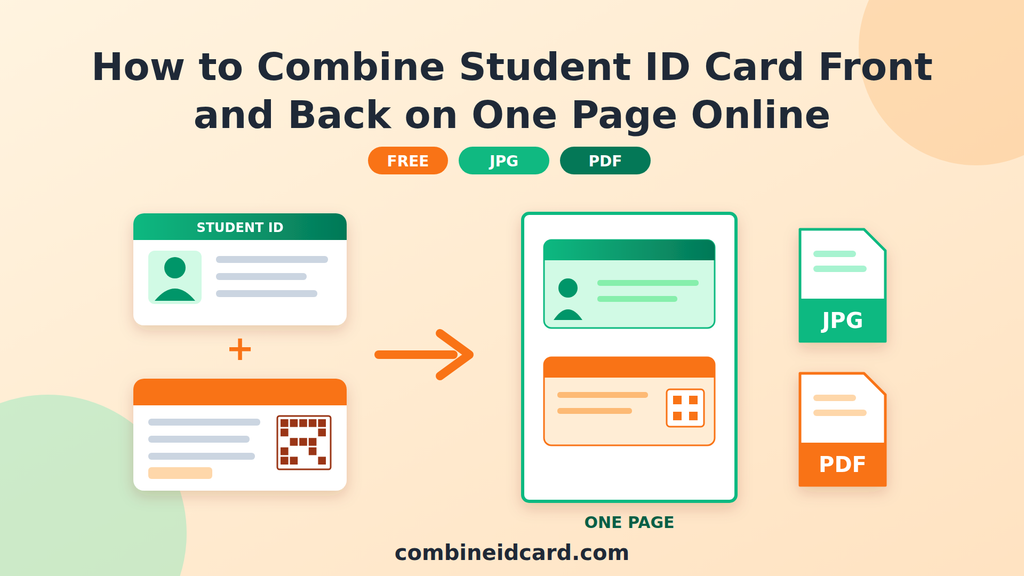
If you want to merge student ID card front and back on one page without using complicated editing software. Our free online Student ID Card Merger makes it easy to put both sides together in a single image. Whether you have a school, college, or university ID, you can arrange the two pictures in one place and create a file that’s easier to view, print, and share when needed.
If you’re wondering how to combine student ID card front and back images online, this guide will walk you through the process. You’ll learn how to upload both pictures, choose a vertical or horizontal layout, adjust their size, and download the finished file in JPG or PDF format. We’ll also share practical tips to keep your student ID images clear and properly aligned.
Why Merge Student ID Card Front and Back into One Image?
If you need to merge student ID card front and back for an application or educational requirement, arranging both sides in one picture can make the process more convenient. A Student ID Card Merger helps organize separate pictures, especially when you need to combine both sides of a student identification card into one file for printing or online submission.
Here are some common reasons to combine student ID pictures:
- College and university applications: Prepare both sides together when an application accepts one combined image
- Student verification: Keep both sides in one organized file when requested by an institution
- Printing: Arrange the front and back together for convenient printing
- Digital records: Store both sides in one picture for easier reference
- Document sharing: Send one combined file instead of managing separate images
Best Layout to Merge Student ID Card Front and Back
When you merge student ID card front and back, selecting the right arrangement makes the final picture easier to view and print. A Student ID Image Combiner helps position both sides, especially when you need to place the front and back of a school or university ID card together on one page.
Vertical Student ID Card Layout
A vertical arrangement places the front side at the top and the back side underneath it. This layout is useful when:
- You want both sides in a top-to-bottom arrangement
- You are preparing a document for educational registration
- You prefer a portrait-style image
- You want both pictures visible in one file
Horizontal Student ID Card Layout
A horizontal arrangement positions the front and back side by side. This layout is useful when:
- You have enough horizontal space
- You prefer a side-by-side presentation
- You are preparing a landscape-style document
- You want to view both sides together
How to Merge Student ID Card Front and Back Online?
To merge student ID card front and back online, you need clear pictures of both sides and a suitable image-merging tool. An Online Student ID Card Merger helps arrange separate pictures, while merging school or university ID card front and back images into one JPG or PDF file makes document preparation easier.
- Prepare both student ID pictures: Save clear photographs or scans of the front and back of your card
- Open the online tool: Visit CombineIDCard.com in your browser
- Upload both sides: Select the front and back images from your device
- Choose a layout: Select vertical placement to put the front above the back, or horizontal placement to position both sides next to each other
- Adjust image dimensions: Use the available settings to arrange both pictures properly
- Preview the combined student ID: Check that your name, photograph, student number, and other important details remain visible
- Download your file: Save the completed image in a supported JPG or PDF format
How to Resize Student ID Card Front and Back Images
Sometimes, the front and back student ID pictures have different dimensions. When you merge student ID card front and back, adjusting their sizes can help create a balanced result. A Student ID Image Resizer helps arrange both pictures, especially when you need to resize student ID card front and back images without stretching or cropping important details.
Follow these guidelines:
- Maintain the original proportions of each picture
- Avoid stretching images in one direction
- Keep both sides visually balanced
- Make sure names, photographs, and student details remain visible
- Use clear original photographs or scans
- Preview the combined image before downloading
How to Download a Combined Student ID Card as JPG or PDF
After you merge student ID card front and back, choosing a suitable file format makes it easier to share, store, or print your document. A JPG and PDF Student ID Card combiner helps prepare the final file, especially when you need to save both sides of your student identification card together for an online application or printed copy.
Download Student ID Card as JPG
JPG is a common image format supported by most devices and online platforms. Choose JPG when:
- A website requests a JPG or JPEG image
- You need a single picture for sharing
- You want to save both student ID sides in one image
- The application specifically accepts image files
Download Student ID Card as PDF
PDF is useful when you need to prepare your student ID image as a document. Choose PDF when:
- An application specifically requires a PDF file
- You want a document-style layout
- You need a convenient format for printing
- You want to organize your educational documents digitally
You can use the online student ID card front and back combining tool to prepare both pictures and download a supported format.
Common Problems When Merge Student ID Card front and back Online
Sometimes, merging student ID card pictures may not produce the expected result. An Online Student ID Card Image Merger helps arrange both sides, but solving common problems when combining student ID card front and back pictures online also requires checking the original images and available settings.
Student ID Images Are Not Uploading
- Check your internet connection
- Confirm that the image format is supported
- Select the pictures again from your device
- Check browser permissions if necessary
Student ID Pictures Look Stretched
- Maintain the original image proportions.
- Avoid changing width and height independently.
- Preview the image after resizing.
Important Student Details Are Cropped
- Check the image boundaries
- Keep the complete card visible
- Avoid unnecessary cropping
- Review the final image before downloading
Downloaded Student ID Image Looks Blurry
- Use clear original pictures
- Avoid excessive enlargement
- Check the available quality settings
- Review the downloaded file before submitting it
How to Prepare a Clear Student ID Card Image for Printing
When you merge student ID card front and back for printing, the quality of your original pictures matters. A Student ID Card Image Merger helps arrange both sides, while preparing a readable student identification card image for printing on one page requires proper lighting, image dimensions, and alignment.
Consider these tips:
- Capture both sides in good lighting
- Keep the student ID card straight while taking pictures
- Avoid reflections and shadows
- Make sure the name, photograph, and student number are readable
- Avoid cropping important information
- Maintain the original image proportions
- Check the print preview before printing
Is It Safe to Merge Student ID Card front and back Online?
A student ID card contains personal information, so privacy should be considered before uploading it to any online tool. A Private Student ID Card combiner should explain its image-processing practices, especially when you need to merge student identification pictures without unnecessarily exposing personal information.
Keep these precautions in mind:
- Read the website’s privacy policy
- Check whether pictures are processed in your browser or uploaded to a server
- Avoid using public computers for sensitive documents
- Do not share student ID images with unknown websites or people
- Store downloaded files securely
- Share student ID copies only when there is a legitimate requirement
Final Thoughts on merge Student ID Card Front and Back
Combining both sides of a student ID card into one image can make educational document preparation, printing, and digital storage more convenient. By using clear pictures, selecting a suitable layout, and checking the final result, you can create an organized file without complicated photo-editing software.
If you need to merge student ID card front and back online, visit CombineIDCard.com. Upload both sides, arrange your pictures, adjust their size, and download your combined file in a supported format.
Frequently Asked Questions
How can I merge student ID card front and back on one page?
Upload both student ID pictures to an online ID card merger, choose a vertical or horizontal layout, adjust their size, preview the result, and download the combined image.
Can I combine student ID card images online for free?
You can use an online image-merging tool to arrange both sides together and also check the website for available features and usage limits.
Can I combine both sides of a student ID card into a PDF?
Yes, if the tool supports PDF downloads, you can save both sides together in a single PDF file.
Can I merge student ID card front and back on my mobile phone?
Yes, you can use our compatible online tool to combine student ID card front and back through your Android or iPhone browser to upload and arrange both student ID pictures.
Should I use a vertical or horizontal layout for student ID images?
A vertical layout places the front above the back, while a horizontal layout places both sides next to each other. Choose the arrangement that meets your institution’s requirements.
Can I resize student ID card front and back pictures before merging?
Yes, you can adjust the dimensions using the available resizing options and maintain the original proportions to avoid distortion.
- How to Print ID Card Front and Back on One Page IN 2026 – Free Online Guide
- How to Merge Aadhaar Card Front and Back on One Page Online in 2026 – Free JPG & PDF
- How to Combine ID Card Front and Back on Android and iPhone in 2026 – Free Online Tool
- How to Combine PAN Card Front and Back on One Page Online in 2026 – Free JPG & PDF
- How to Convert ID Card to PDF Online in 2026 – Free JPG to PDF Guide