
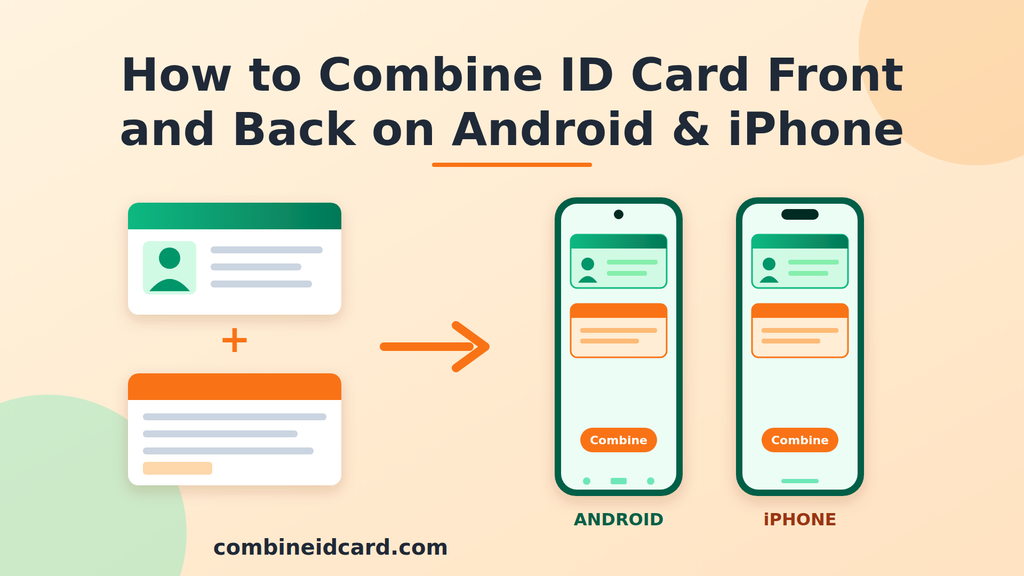
Want to Combine ID Card Front and Back on Android and iPhone in 2026 – Free Online Tool without installing another app? You can use an online mobile ID card merger to put both sides of your identity card together in one image. Whether you’re using an Android phone or an iPhone, a browser-based tool makes it easy to upload your pictures, choose a layout, and prepare a combined file right from your device.
If you’re looking for how to merge ID card front and back images on Android and iPhone, this guide will walk you through the process. You’ll learn how to upload both pictures, arrange them vertically or horizontally, adjust their size, and download the finished image in a supported format. This makes it easier to prepare ID card copies for printing, online applications, or personal records.
What Does It Mean to Combine ID Card Front and Back on Android and iPhone?
Merge ID Card Front and Back on Android and iPhone means placing pictures of both sides into one image using your smartphone. An ID Card Image Combiner Online helps arrange the two pictures together, so you can merge both sides of an ID card on Android or iPhone without installing a photo-editing application.
Instead of keeping separate files, you can create one organized image for different purposes, such as:
- Online applications: Prepare both sides together when a website accepts a combined image
- Document sharing: Share one image instead of sending separate pictures
- Printing: Arrange both sides before preparing a printable copy
- Digital storage: Keep front and back pictures together for easy reference
- Mobile convenience: Arrange supported ID card images directly through your smartphone browser
Which ID Cards Can You Combine on a Smartphone?
Combine ID Card Front and Back on Android and iPhone is useful for many identification documents. An Online ID Card Image Merger can help arrange supported pictures, including CNIC, Aadhaar, PAN, and driving license images on Android and iPhone.
Common examples include:
- CNIC: Pakistani Computerized National Identity Card
- Aadhaar Card: Indian identity document
- PAN Card: Permanent Account Number card
- Driving Licence: Front and back licence pictures
- Voter ID Card: Voter identification document
- Student ID Card: Educational institution identification
- Employee ID Card: Workplace identification
- Residence Permit: Residency identification document
- Insurance Card: Insurance identification pictures
How to Combine ID Card Front and Back on Android?
To combine ID card front and back on Android, you need clear pictures of both sides and a compatible mobile browser. An Online ID Card Merger helps arrange separate pictures, while merging CNIC or other ID card front and back images on an Android phone without downloading an app makes document preparation more convenient.
- Prepare both pictures: Open your phone’s gallery and locate the front and back images of your identity card
- Open the online tool: Visit CombineIDCard.com using a supported browser on your Android device
- Upload the images: Select both pictures from your phone’s gallery or file picker
- Choose a layout: Select vertical placement to put one image above the other or horizontal placement to arrange them side by side
- Adjust the pictures: Use the available settings to arrange the images and adjust their size
- Preview the result: Check that both sides are visible and important information has not been cropped
- Download the file: Save the combined image in a supported format, such as JPG or PDF
How to Combine ID Card Front and Back on iPhone?
If you use an iPhone, you can also combine ID card front and back through a compatible web browser. An iPhone ID Card Merger helps organize both pictures, especially when you need to combine the front and back of an identity card on iPhone using Safari without installing another application.
- Open your Photos app: Find the front and back pictures of your ID card
- Launch Safari: Visit the online ID card combining tool using Safari or another supported browser
- Select both images: Use the upload option to choose the required pictures from your iPhone
- Arrange the images: Choose the available vertical or horizontal layout
- Adjust the size: Make sure both pictures are properly aligned and readable
- Review the preview: Check the final arrangement before downloading
- Save the result: Download the combined file and locate it in the appropriate download location on your iPhone
How to Choose the Best ID Card Layout on Your Mobile Phone?
When you Combine ID Card Front and Back on Android and iPhone, choosing the right arrangement helps make both pictures easier to view and share. A Mobile ID Card Image Merger lets you organize the images vertically or horizontally, depending on your preferred document style.
| Feature | Vertical Layout | Horizontal Layout |
|---|---|---|
| Image placement | Front above, back below | Front and back side by side |
| Orientation | Portrait | Landscape |
| Best for | Top-to-bottom arrangement | Side-by-side presentation |
| Viewing style | Both sides in one column | Both sides next to each other |
| Suitable when | You prefer a simple portrait-style image | You have enough horizontal space |
| Main benefit | Creates a stacked image | Makes both sides easy to compare |
Which Layout Should You Choose?
Choose vertical positioning for a portrait-style document or horizontal positioning for a side-by-side image and before downloading, preview the result to make sure both sides are complete, clear, and properly aligned on your phone.
How to Resize ID Card Images on Android and iPhone?
When you Combine ID Card Front and Back on Android and iPhone, the original pictures may have different dimensions. An ID Card Image Resizer helps adjust their appearance, especially when you need to resize front and back ID card images on Android or iPhone without stretching or cropping important details.
Follow these guidelines:
- Maintain the original proportions of each picture
- Avoid stretching images in one direction
- Keep both sides visually balanced
- Make sure all important details remain visible
- Use clear original photographs or scans
- Preview the final image before downloading
How to Download Combined ID Card Images on Mobile
After you Combine ID Card Front and Back on Android and iPhone, choose a suitable format and save the finished file to your device. A JPG to PDF ID Card Merger makes it easier to prepare a combined image for printing, sharing, or personal records.
| Download Step | Android Phone | iPhone |
|---|---|---|
| Prepare image | Complete the arrangement in your browser | Preview the combined image in your browser |
| Download | Tap the available download option | Use the browser’s download or sharing option |
| Select format | Choose a supported JPG or PDF format | Choose a supported JPG or PDF format |
| Find saved file | Open Downloads or your file manager | Open the Files app and check Downloads |
| Final check | Confirm both sides are visible | Make sure the downloaded file displays both sides correctly |
Helpful Tip: Always open the downloaded file before sharing or printing and check that both sides are clear, correctly positioned, and fully visible.
Common Problems When Combine ID Card Front and Back on Android and iPhone
An ID Card Image Combiner makes it easier to arrange pictures on your phone, but browser settings and image quality can sometimes affect the result. Here are common mobile issues and their quick fixes:
- Images won’t upload: Check your internet connection, supported file formats, and browser photo permissions
- Images look too large or small: Adjust the dimensions while maintaining the original image proportions
- Download is not working: Check browser download permissions, available storage, and your Downloads folder
- Final image looks blurry: Use clear original pictures and avoid excessive enlargement
- Images are incorrectly aligned: Review the layout and preview both sides before downloading
- Tool is not responding: Refresh the page or try another compatible mobile browser
Is It Safe to Combine ID Card Images on a Mobile Phone?
Before Combine ID Card Front and Back on Android and iPhone, check how the online tool handles your personal information. A Private ID Card Merger should explain its image-processing practices, especially when you need to combine sensitive identity card pictures on Android or iPhone without unnecessary data exposure.
Keep these precautions in mind:
- Review the website’s privacy policy
- Check whether images are processed in your browser or uploaded to a server
- Avoid using public Wi-Fi or shared devices for sensitive documents when possible
- Do not share your identity card pictures with unknown websites
- Store downloaded files securely
- Remove temporary copies from shared devices when finished
Final Thoughts on Merge ID Card Front and Back on Android and iPhone
Combining ID card pictures on a smartphone can make document preparation easier when you need both sides in one image. Whether you use Android or iPhone, a compatible online tool can help you upload, arrange, resize, and download supported image files without complicated editing software.
If you want to Combine ID Card Front and Back on Android and iPhone, visit CombineIDCard.com. Upload both pictures, choose your preferred arrangement, review the result, and download your combined file in a supported format.
Frequently Asked Questions About
Can I Combine ID Card Front and Back on Android and iPhone?
Yes, you can use our merge ID Card Front and Back on Android and iPhone tool through your browser Upload both pictures, select a layout, preview the result, and download the combined file.
How can I merge both sides of an ID card on iPhone?
Yes, you can visit our merge ID Card Front and Back on Android and iPhone tool, select both pictures from your Photos or Files, arrange them, and download the combined result.
Do I need to install an app to combine ID card images?
No, you can use a browser-based tool without installing a separate application, provided the tool supports your device and browser.
Can I combine CNIC front and back on my mobile phone?
Yes, you can upload supported CNIC front and back pictures from your smartphone and arrange them together in one image.
Can I save the combined ID card as JPG or PDF?
You can save the combined image in the formats supported by the tool. Check whether JPG and PDF download options are available before starting.
Can I resize ID card images on Android and iPhone?
Yes, you can adjust supported pictures through an online tool that provides resizing options and always maintain their original proportions to avoid distortion.