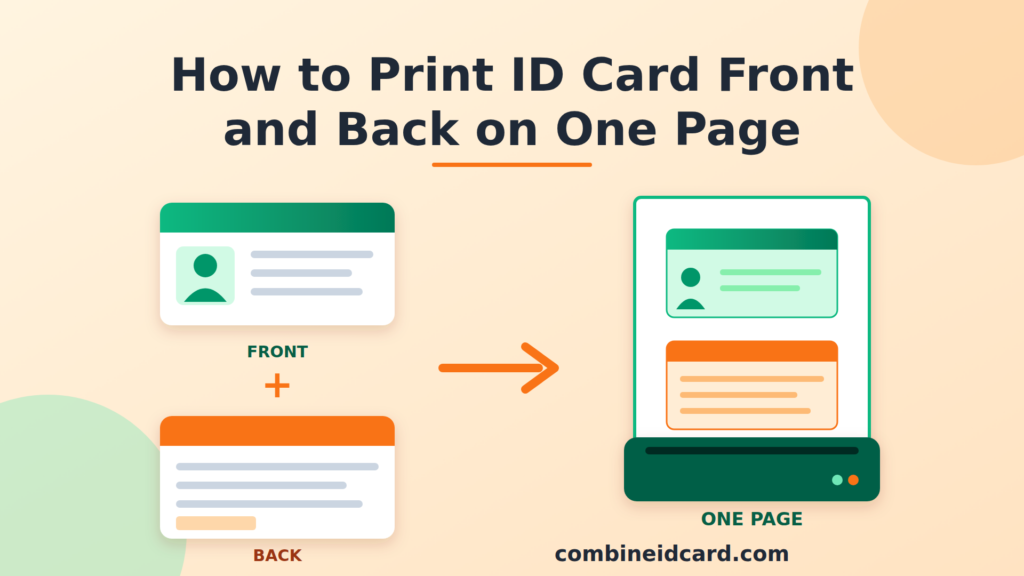
Print ID Card Front and Back on One Page by arranging both sides of your identity document into a single image before printing. An online ID Card Front and Back Merger makes it easier to position the two pictures, adjust their dimensions, and select a suitable layout for a neat printed copy.
Whether you have a Pakistani CNIC, Aadhaar card, driving license, or student ID, preparing both sides together can simplify printing and document organization. At Combine ID Card, we explains how to combine ID card images for printing, arrange them correctly, and prepare a clear file for your printer.
How to Print ID Card Front and Back on One Page Online
To print ID card front and back on one page, first arrange both pictures into a single image. An Online ID Card Merger makes it easier to combine separate pictures, while preparing front and back ID card images together for printing helps you create an organized print-ready file.
- Prepare both pictures: Take clear photographs or scans of the front and back of your ID card
- Open an online ID card tool: Visit CombineIDCard.com to arrange both sides together
- Upload the front and back: Select both images from your computer or mobile device
- Choose a layout: Select vertical placement to put the front above the back, or horizontal placement to position them side by side
- Adjust the image size: Resize the pictures using the available settings while keeping their original proportions
- Check the preview: Make sure both sides are visible and important information is not cropped
- Download the file: Save the combined image in a supported JPG or PDF format
- Open the print settings: Select your printer, paper size, orientation, and suitable print scaling
- Check the print preview: Confirm that both sides fit properly on one sheet before printing
Best Layout to Print ID Card Front and Back on One Page
Choosing the right arrangement makes it easier to Print ID Card Front and Back on One Page with both sides clearly visible. A suitable ID Card Image Layout helps position the pictures properly, whether you are preparing a portrait or landscape document.
| Layout | Image Arrangement | Best For | Main Benefit |
|---|---|---|---|
| Vertical Layout | Front image at the top and back image underneath | Portrait-oriented paper | Keeps both sides in a simple top-to-bottom sequence |
| Horizontal Layout | Front and back images placed side by side | Landscape-oriented paper | Makes it easy to view and compare both sides together |
Choose the vertical layout when you prefer a stacked arrangement or have limited horizontal space. Select the horizontal layout when the paper has enough width for both images to appear side by side.
Why Print ID Card Front and Back on One Page?
Print ID Card Front and Back on One Page by combining both sides into a single image before printing. An ID Card Image Merger helps arrange separate pictures in one layout, making it easier to print both sides of an identity card together on a single sheet of paper.
Here are some common reasons to print both sides together:
- Document submission: Prepare both sides when an application requires a printed ID card copy
- Office requirements: Keep front and back details together for administrative records
- Personal records: Store both sides in one printed copy for easy reference
- Convenient printing: Avoid printing each side on a separate sheet
- Better organization: Create a neat layout that is easier to review and manage
How to Choose the Correct ID Card Size for Printing
When you print ID card online on one page, the image dimensions should be suitable for the intended paper size. A good ID Card Resizer and Merger helps you arrange both pictures, while adjusting ID card image dimensions for clear printing without distortion keeps the original appearance more consistent.
Consider these points before printing:
- Maintain the original proportions of the ID card
- Avoid stretching images to fill the available paper space
- Keep both sides at a consistent visual size
- Leave enough space around the pictures
- Make sure text, photographs, and card details remain readable
- Check the print preview before confirming the job
How to Print a Combined ID Card as JPG or PDF
After combining both pictures, choosing the right file format makes printing and storing your ID card copy easier. A JPG or PDF ID Card Merger helps prepare both sides in one file, allowing you to save and print front and back ID card images together on a single page.
| Format | Description | Best For | Main Benefit |
|---|---|---|---|
| JPG | A common image format supported by many devices and printing applications | Direct image printing, personal records, or when JPG/JPEG is requested | Easy to open, share, and print |
| A document format suitable for arranging images on a page | Document submission, page review, and organized storage | Convenient for document-style printing and sharing |
Choose JPG when you need a simple image file and PDF when you prefer a document-style layout. Always check the required format before submitting your ID card copy.
Can You Print CNIC Front and Back on One Page?
Yes, you can prepare both sides of a Pakistani CNIC together in one image before printing. A CNIC Image Merger helps arrange the front and back pictures, while printing both sides of a Pakistani CNIC on one A4 sheet can be useful when a printed copy is requested.
For a clear result:
- Capture the front and back separately
- Make sure the name, photograph, and other details are readable
- Keep both sides in their correct order
- Select vertical or horizontal placement
- Check the final dimensions before printing
Common Problems When Print Print ID Card Front and Back
Sometimes, the printed result may look different from the preview. A Merge ID Card tool helps arrange both pictures, but checking your printer settings is also important to fix common problems when printing front and back ID card pictures on one page.
Common printing issues include:
- ID card images look too small: Check the paper size, print scaling, and combined image dimensions before printing
- Part of the ID card is cut off: Keep both images within the printable area and review the complete page in print preview
- Both sides have different sizes: Resize the pictures carefully, maintain their original proportions, and align them properly
- Printed text looks blurry: Use clear original photos or scans, avoid excessive enlargement, and check the downloaded file before printing
- Incorrect page orientation: Select portrait or landscape according to your chosen layout and available paper space
Tips for Better ID Card Printing Results
When you print ID card front and back on one page, preparing the images properly can improve the final result. A reliable ID Card Image Merger helps organize the pictures, while creating a clear combined ID card image for printing and document submission requires attention to a few details.
- Use clear, well-lit photographs
- Keep the card straight when taking pictures
- Avoid glare and reflections
- Do not crop important information
- Maintain the correct front and back order
- Select the appropriate paper size
- Review the final print preview
- Follow the receiving organization’s document requirements
Is It Safe to Print and Store ID Card Copies?
Identity cards contain sensitive personal information, so print ID Card front and back and digital copies should be handled carefully. A Private ID Card Merger should clearly explain its processing practices, especially when you need to combine and print personal identity documents without unnecessary exposure of private information.
Keep these precautions in mind:
- Check how an online tool processes uploaded images
- Prefer browser-based processing when available
- Avoid using public computers for sensitive documents
- Do not leave printed ID card copies unattended
- Store digital and printed copies securely
- Only share identity documents when there is a legitimate requirement
Final Thoughts on Print ID Card front and back
Printing both sides of an identity card on one page makes document preparation easier and keeps important information together. By combining both pictures, selecting a suitable layout, and checking the print settings, you can create a neat file ready for printing.
If you need to Print ID Card Front and Back on One Page, try our free online ID card combining tool, upload the front and back images, arrange them, adjust their size, and download the combined file in a supported format.
Frequently Asked Questions
How can I print ID card front and back on one page?
Combine both sides into one image using an online ID card tool and choose a suitable layout, adjust the image size, download the file, and print it after checking the print preview.
Can I print both sides of my CNIC on one A4 page?
Yes, you can arrange the front and back pictures together and prepare a combined image for printing on A4 paper and make sure the dimensions and print scaling meet your requirements.
Can I print ID card front and back using my mobile phone?
Yes, you can prepare the combined image through a compatible mobile browser and you can then download the file and print it using a supported printer or printing service.
Can I print Aadhaar card front and back on one page?
Yes, you can arrange supported Aadhaar card images together and prepare them for printing and make sure the final layout follows the requirements of the organization requesting the copy.
Do I need Photoshop to print both sides together?
No, you can use an online ID card merger to combine the pictures and prepare a single file without professional photo-editing software.
- How to Print ID Card Front and Back on One Page IN 2026 – Free Online Guide
- How to Merge Aadhaar Card Front and Back on One Page Online in 2026 – Free JPG & PDF
- How to Combine ID Card Front and Back on Android and iPhone in 2026 – Free Online Tool
- How to Combine PAN Card Front and Back on One Page Online in 2026 – Free JPG & PDF
- How to Convert ID Card to PDF Online in 2026 – Free JPG to PDF Guide