
Combine Passport Front and Back Online on One Page
Bring your passport images together in one convenient layout for printing, document preparation, or personal records. Arrange your images neatly and prepare a combined file using JPG, PNG, or A4 PDF options supported by the tool.
Need to Combine Passport Front and Back into one convenient layout? Instead of keeping passport images in separate files, you can arrange the relevant pages together to make them easier to store, print, or access when needed. A neatly prepared copy can be useful for personal records and document preparation, provided it meets the requirements of the organization requesting it.
A passport image merger helps bring separate images into a single, organized layout, while an A4 PDF passport format can be useful when you need a printable document. Choose a suitable arrangement for your images and keep the original files unchanged so you always have a clear copy available for future use.
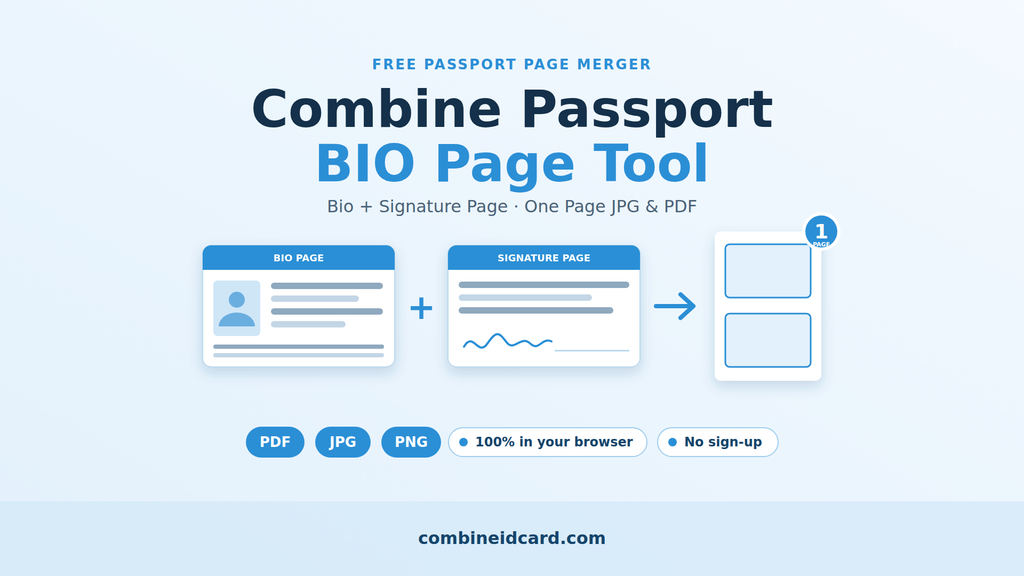
Passport images may be needed for different purposes, from keeping travel documents organized to preparing copies for administrative paperwork. Combine Passport Front and Back gives users a practical way to arrange passport images in a single layout, making the resulting file easier to manage when a combined copy is suitable for the intended purpose. Always check the receiving organization’s requirements before submitting or printing your document.
For a cleaner result, start with clear, well-lit images and make sure important details remain readable after arranging them. A passport image combiner can help organize separate pages, while how to combine passport images into one A4 PDF is a useful approach when a paper copy is required. Keep the original images safely stored, and choose the appropriate JPG, PNG, or PDF format according to your needs and the options available in the tool.
How to Combine Passport Front and Back Online?
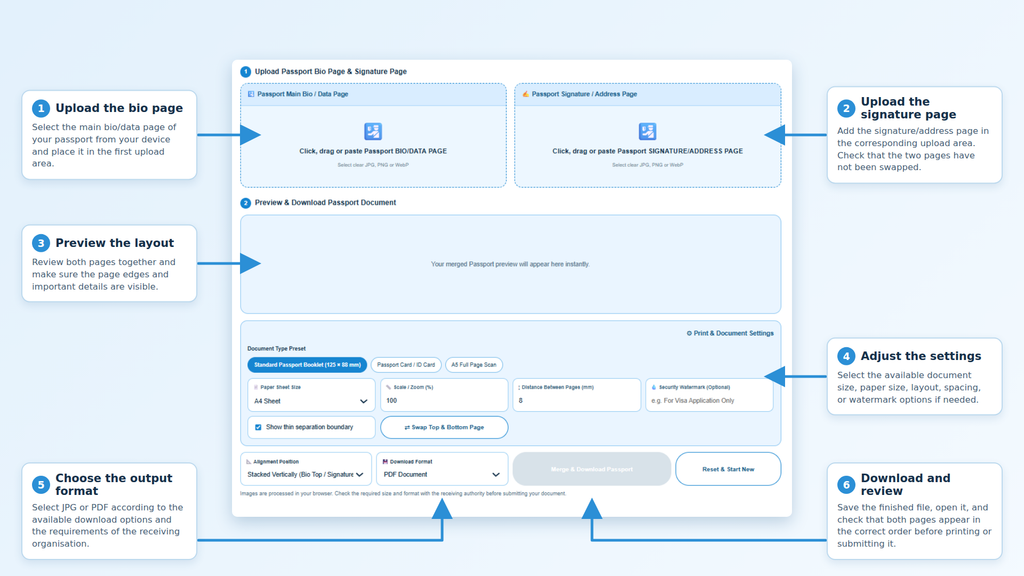
Combining passport images is straightforward when you have clear photos and choose the right layout. Follow these steps to prepare an organized copy for printing or personal records.
- Step 1: Upload Passport Images — Select the passport images you want to combine. Use clear JPG or PNG files if supported, and ensure the complete pages are visible.
- Step 2: Choose a Layout — Select a vertical stacked or horizontal side-by-side arrangement according to your needs. For combining passport images for A4 printing, check how the images fit on the page.
- Step 3: Adjust Image Size — Review the preview and adjust the available scale, spacing, or orientation. Keep the images proportionate so important text remains readable.
- Step 4: Select the Output Format — Choose JPG, PNG, or A4 PDF based on your requirements and the formats supported by the tool. PDF can be convenient for printing, while image files are useful for digital records.
- Step 5: Preview the Combined File — Check for incorrect rotation, cropped edges, or unclear text before downloading.
- Step 6: Download and Check — Save the completed file and open it to confirm that both images appear correctly. If you plan to print it, review the page size and scaling settings first.
Choose the Right Layout to Combine Passport Front and Back
The best layout depends on whether you want to preserve the original image dimensions or fit both images onto a standard sheet. When you Combine Passport Front and Back, consider the paper size, image orientation, and readability before downloading your file. A passport image merger helps arrange the selected images, but the final dimensions depend on the layout and scaling settings you choose.
| Layout Option | Paper or Page Setting | Expected Result |
|---|---|---|
| Stacked | A4 or Letter | Images arranged vertically; final size depends on scaling |
| Side by Side | A4 or Letter | Images arranged horizontally and may appear smaller |
| Stacked | Fit Passport Pages Only | A compact page designed around the selected images |
| Side by Side | Fit Passport Pages Only | A wider page with both images arranged horizontally |
For how to combine passport images on an A4 page without reducing their size, check the preview and print settings before saving. The exact dimensions depend on the source images and the tool’s available options, so confirm the output rather than assuming the original size will be preserved.
Settings to Check Before Downloading
- Scale or zoom: Review the preview to ensure important text remains readable
- Space between images: Leave enough separation to distinguish each page clearly
- Page boundary: Show or hide the dividing line according to your preferred appearance
- Document type: Select a passport-specific or ID-card preset if available and suitable for your purpose
- Paper size: Choose A4 or Letter when you need a standard paper layout
These settings can affect the final appearance of your combined passport image. If exact dimensions matter, check the downloaded file’s print settings and measure the output before using it for an official purpose.
Take Clear Photos Before You Combine Passport Front and Back
A well-arranged document can still be difficult to use if the original photographs are blurry, cropped, or poorly lit. Before you Combine Passport Front and Back, capture each required page clearly and check that the text and identifying details are visible. Good source images make a passport photo combiner more useful because the final result depends heavily on the quality of the uploaded files.
Tips for Readable Passport Images
- Capture the complete page: Keep all relevant edges inside the frame and avoid cutting off printed information
- Use even lighting: Reduce glare, harsh shadows, and reflections on glossy surfaces
- Keep the passport flat: Position the page evenly to avoid distortion
- Check small text: Review the image closely, especially around printed details and the machine-readable zone
- Maintain consistent orientation: Rotate both images correctly so the final layout looks organized
- Avoid unnecessary cropping: Make sure important text and page details remain visible
If you need to combine clear passport photos into one printable document, review both images before downloading. A combined file cannot restore details that were already blurred or missing in the original photographs.
Keep Your Combined Passport Copy Safe
Passport images contain personal information, so storing and sharing them requires care. When you Combine Passport Front and Back, create only the copy you need and keep it in a secure location. A passport document merger can help organize images, but it does not automatically protect the resulting file.
Practical Ways to Protect Passport Images
- Add a purpose-specific watermark: If appropriate, include the intended use and date without covering important information
- Share only when necessary: Send the document through a trusted channel when the recipient requires it
- Avoid public uploads: Do not post passport images in public groups, forums, or on social media
- Keep originals separate: Store the original files securely in case you need another layout later
- Remove unnecessary copies: Delete temporary downloads and duplicate files when you no longer need them
For how to protect a combined passport image before sharing, consider whether the recipient needs every page and detail. A watermark may communicate the intended use, but it does not prevent someone from copying or redistributing the file. Follow the receiving organization’s instructions and avoid altering official document details.
Common Combine Passport Front and Back Problems and Their Solutions
Sometimes the downloaded document does not look the way you expected. Images may appear too small, text may be difficult to read, or pages may be arranged incorrectly. When you Combine Passport Front and Back, check the selected layout and preview before downloading. A passport image combination tool may offer settings that help resolve these issues, depending on its available features.
| Problem | Possible Reason | What to Try |
|---|---|---|
| Passport images look too small | The layout scales images to fit the paper | Try a stacked layout or a passport-specific page preset |
| Text is difficult to read | The original photos are blurry or the output is scaled down | Upload clearer images and review the scale settings |
| Part of a page is missing | The original photo was cropped too tightly | Upload a complete image with all relevant edges visible |
| Images appear rotated | The source images have different orientations | Rotate the images before combining them |
| A border appears around each image | A page boundary or outline option is enabled | Disable the boundary if the tool provides that option |
| The PDF file is too large | The source images have high resolution or large file sizes | Try a supported JPG output or reduce image size carefully |
If you are learning how to fix passport images that look too small in an A4 PDF, start by checking the layout and scaling settings. Preview the result before downloading, and avoid reducing image quality so much that essential details become difficult to read.
Prepare Your Passport Images for Printing
Before printing, check that the combined document matches the intended page size and orientation. When you Combine Passport Front and Back, the layout on your screen may differ from the printed result because of scaling, margins, or printer settings. A passport-to-PDF converter can be useful when PDF output is supported and you need a file that is convenient to print or share.
Before You Print
- Confirm that the document uses the intended paper size, such as A4
- Check whether the print dialog is set to actual size or fit to page
- Review the preview for unexpected cropping or blank space
- Make sure the text and relevant details remain legible
- Follow any specific size and format instructions supplied by the receiving organization
For printing combined passport images on A4 paper, remember that selecting A4 does not automatically guarantee the passport pages will print at their original dimensions. Check the document scale and printer settings before relying on the measurements.
Important: Passport formats and requirements differ by country and purpose. A combined image is useful for organizing or printing copies, but it does not replace an official passport or guarantee acceptance by a government department, embassy, airline, or other organization.
Frequently Asked Questions
How can I combine passport front and back online?
It is easy to Combine Passport Front and Back – upload your passport images, choose a layout, preview the result, and download the combined file.
Can I combine passport images into an A4 PDF?
Yes, if the tool supports A4 PDF output and check the page size and scaling before printing.
Can I upload JPG and PNG to Combine Passport Front and Back images?
JPG and PNG images can be used if these formats are supported by the tool.
Which layout is better for passport images?
A stacked layout is often easier for printing, while a side-by-side layout places both images horizontally.
Will combining passport images reduce their quality?
The result depends on the original image quality, scaling, and output settings and use clear images and check the preview.
Is it safe to upload passport images online?
Passport images contain sensitive information and use trusted tools, avoid unnecessary sharing, and store downloaded files securely.
Can I use a combined passport image for official applications?
Requirements vary by organization and check whether a combined image is accepted before submitting it.