
Merge Green Card Front and Back on One Page
Need both sides of your Green Card in a single layout? Upload the front and back images, arrange them neatly, and save a combined copy in JPG or PDF format for printing or your document needs.
For official use, confirm the required paper size and print scale with the receiving organization. Avoid sharing your card images on public devices.
Combine Green Card Front and Back Online to bring both sides of your Green Card together in one clear layout. Adjust the images to your preference, check the preview, and download your combined card as a JPG or PDF for convenient printing or document submission.
Whether you need to merge Green Card front and back or merge ID card online for printing, or prepare a Green Card JPG or PDF, check that both sides are clear and correctly positioned before downloading. A well-arranged copy is easier to view, save and submit when the receiving organization accepts that format.
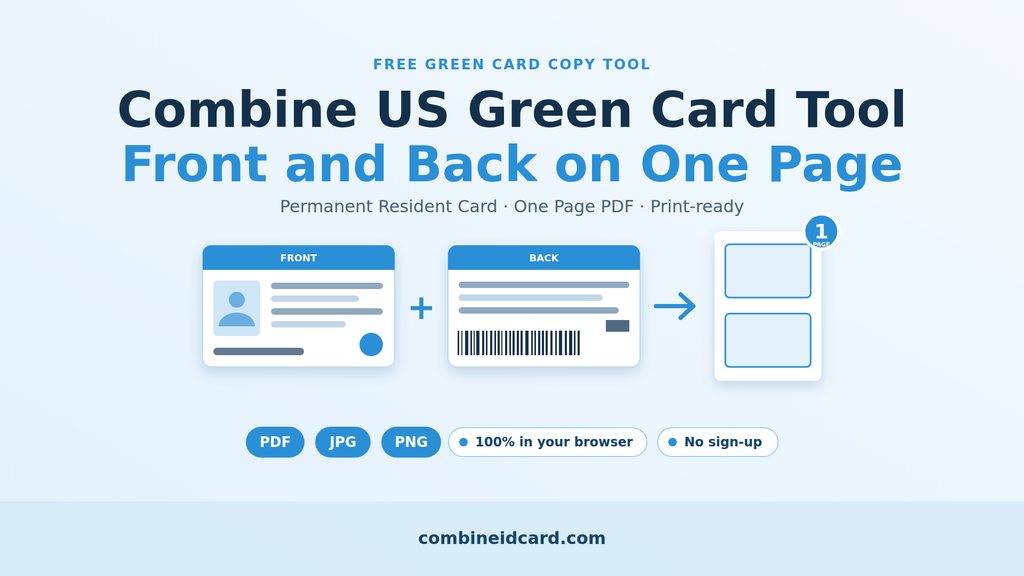
A Green Card is one of those documents you may need to share for an application, a record, or another administrative task. When someone asks for both sides, sending two separate photos can be inconvenient, especially if the recipient needs them together in one file. With Combine Green Card Front and Back Online, you can arrange the front and back of your U.S. Permanent Resident Card in a single layout.
This makes it easier to merge Green Card front and back images and create a Green Card front and back on one page. Upload both images, check their position in the preview, and choose an available JPG or PDF format. Before sending the finished copy, make sure the recipient accepts the file type and layout you have prepared.
How to Combine Green Card Front and Back Online?
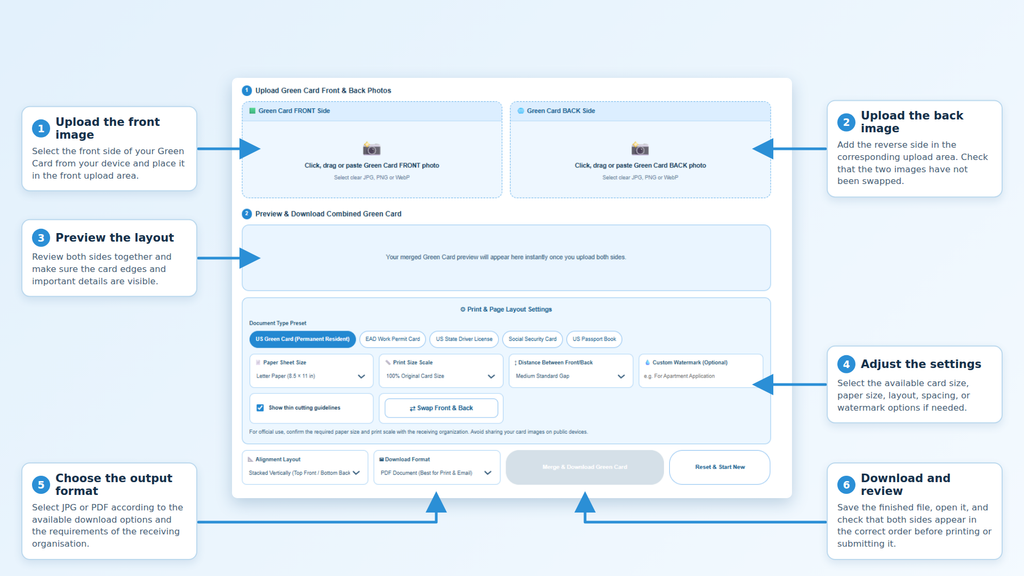
You do not need to arrange two images manually in a document editor if the merger tool already provides separate upload fields and a preview. The process is straightforward when both source images are clear and correctly oriented.
- Upload the front image. Select the image showing the front of your Green Card and place it in the front-side field
- Upload the back image. Add the reverse side in the matching field. Check that the front and back have not been mixed up
- Review the preview. Look for missing edges, incorrect orientation, glare and text that is too small to read
- Choose your layout. Select the available arrangement, such as stacked or side by side, according to your needs
- Adjust the output settings. If supported, select the page size, image scale, spacing or watermark options
- Download the file. Choose JPG or PDF if the tool offers that format, then open the saved file to check the result
When you Combine Green Card Front and Back Online, the preview is especially useful because it lets you catch mistakes before saving the final copy. If either image is in the wrong field, use the tool’s swap option if available instead of uploading both files again.
Before Using a Green Card Copy for Form I-9
A combined Green Card image can be useful for general paperwork, but employment eligibility verification has its own requirements. A digital image or merged copy created when you merge Green Card front and back should not automatically be treated as a substitute for presenting the required original document.
For Form I-9, employers generally follow the document examination and verification procedures set by U.S. Citizenship and Immigration Services (USCIS). The correct process can depend on the employer’s eligibility for an authorized alternative procedure and the applicable rules. If an employer requests a Green Card copy for Form I-9, ask whether they need to examine the physical card or accept a copy for their particular purpose.
Keep these points in mind:
- A merged image can help organize a document copy for records or a requested upload
- Do not assume that a JPG or PDF replaces the required document examination for employment verification
- Follow the current instructions provided by your employer and USCIS
- Keep your physical Green Card safe and available when it is required
The purpose of Combine Green Card Front and Back Online is to help arrange images, not to determine whether a copy meets a legal or administrative requirement.
When to Combine Green Card Front and Back on One Page
Requests for a copy of both sides can arise in different situations. The format that works best depends on the recipient’s instructions, the upload system and whether the document is intended for printing or electronic storage.
| Who is requesting it? | Possible use | Format to consider |
|---|---|---|
| A landlord or property manager | Rental application records | PDF or the requested image format |
| A bank or financial service | Account documentation or identity review | The format specified by the institution |
| A school or university | An administrative record | PDF or JPG, depending on the portal |
| An online application portal | Uploading both sides as one file | The accepted file type and size |
| Personal document records | Keeping both sides together | JPG or PDF |
| An authorised representative | Preparing paperwork for review | The format requested by the representative |
These are examples, not universal rules. Always confirm the recipient’s requirements before submitting your document. Some portals accept only one file, while others ask for separate front and back images.
Combine Green Card Front and Back Online: Letter, A4 and Print Settings
Letter and A4 are common paper sizes, but the best setting depends on where you will print the document and how the recipient wants it arranged. Letter paper measures 8.5 × 11 inches, while A4 measures 210 × 297 mm.
The card’s physical dimensions are different from the dimensions of the page holding it. Changing the page size does not automatically change the Green Card image to the correct physical scale. Check both the layout and print settings before using the file.
| Setting | What it affects | When to check it |
|---|---|---|
| Letter paper | The size of the output page | When printing on standard U.S. Letter paper |
| A4 paper | The size of the output page | When your printer or recipient requires A4 |
| Actual Size or 100% | The print scale | When preserving the intended dimensions matters |
| Fit to Page | Scales the content to fit the printable area | When the page layout extends beyond the available area |
| Stacked layout | Places the front and back one above the other | When vertical arrangement is preferred |
| Side-by-side layout | Places both sides next to each other | When a horizontal arrangement is more convenient |
If you want to Combine Green Card Front and Back Online for printing, check the downloaded file rather than relying only on the on-screen preview. Printer drivers can change the scale, so review the print dialogue before producing a physical copy.
What Do the Green Card Image Merger Settings Do?
The available controls may vary by tool. Use the settings that are actually present in the interface rather than assuming every option is supported.
| Option | Purpose | Practical tip |
|---|---|---|
| Card arrangement | Controls how the two images are positioned | Choose the arrangement requested by the recipient |
| Image scale | Changes the displayed size of the card images | Avoid enlarging images so much that they no longer fit |
| Paper size | Sets the output page dimensions, when supported | Match the required paper size |
| Space between images | Adds or reduces the gap between the two sides | Keep enough space to distinguish each side clearly |
| Cutting guides | Adds outlines to help with trimming, if available | Turn them off for a cleaner digital copy if appropriate |
| Watermark | Places a label over the image, if supported | Keep it away from important text and photographs |
| Output format | Determines whether the result is saved as JPG or PDF | Choose the format accepted by the recipient |
After adjusting any setting, review the full preview. A visually tidy layout is useful, but readability and the recipient’s requirements should come first.
Green Card JPG or PDF: Which Format Should You Choose?
JPG and PDF serve different purposes. A JPG is an image file that can be convenient for an upload field that accepts pictures. A PDF can be more suitable when you need a document page for printing or recordkeeping.
| Feature | JPG | |
|---|---|---|
| File type | Image | Document |
| Common use | Image uploads and quick sharing | Document submission and printing |
| Page layout | Based on the image dimensions | Can preserve a page layout when exported correctly |
| File size | Depends on image dimensions and compression | Depends on the images and PDF settings |
| Before submission | Check image clarity and accepted file size | Check page dimensions, readability and accepted file size |
Neither format is accepted by every website or organisation. Check the instructions before uploading, and avoid excessive compression that makes small text difficult to read.
Taking Clear Green Card Photos Before Combining Them
The final result of Combine Green Card Front and Back Online can only be as clear as the original images. If the card number, photograph or small printed details are blurry in the source photo, placing the images together will not restore the missing information.
A few simple steps can improve your photos:
- Place the card on a clean, plain surface
- Use even lighting to reduce reflections from the card’s glossy surface
- Hold your phone directly above the card instead of photographing it at an angle
- Keep all four edges inside the frame
- Take the front and back photos from a similar distance
- Check that no fingers, shadows or objects cover important details
- Use the original image when possible instead of a heavily compressed screenshot
- Review the photos at full size before uploading them to merge Green Card front and back images
If a photograph is too dark or blurred, take a clearer photo if possible. A Green Card image resizer can change dimensions, but it cannot recreate details that were not captured in the original.
Protect Your Green Card Information When Sharing a Copy
A Green Card contains sensitive personal information, so think carefully about where you upload or send a copy. Before using an online service, review its privacy policy and determine how it handles uploaded files. Do not assume that images stay on your device unless the service’s processing behavior confirms that.
When you Combine Green Card Front and Back Online, keep these precautions in mind:
- Use a service you trust and understand.
- Send the document only to a recipient or portal you have verified.
- Avoid sharing a clear copy publicly or sending it to unknown contacts.
- Add a purpose-specific watermark only when appropriate and permitted by the recipient.
- Store downloaded copies securely.
- Remove unnecessary copies from shared computers and devices.
- Never assume that a watermark prevents copying, editing or misuse.
- Keep your original physical card safe.
A merged image is still a copy of a sensitive identity document. Only share it when needed, and follow the recipient’s instructions for protecting personal information.
Common Problems When You Merge Green Card Front and Back Images
If your combined file does not look right, check the source images and settings before starting again. Many problems can be fixed with a small adjustment.
| Problem | Possible reason | What to try |
|---|---|---|
| Front and back are reversed | Images were placed in the wrong fields | Swap the sides and check the preview |
| Part of the card is missing | The source photo was cropped too tightly | Upload an image that includes all four edges |
| Text is difficult to read | The source image is blurry or too small | Use a clearer, higher-resolution image |
| Card images look stretched | The image proportions were changed | Preserve the original proportions where possible |
| The PDF is larger than expected | The images contain a lot of data | Use supported compression while preserving readability |
| A website rejects the file | The format, dimensions or file size may not meet its requirements | Check the portal’s upload instructions |
| The printed copy looks smaller than expected | Print scaling changed the dimensions | Review the print scale and page settings |
| The watermark covers important details | The label is too large or poorly positioned | Move or reduce it, if the tool permits |
When you Combine Green Card Front and Back Online, make one change at a time and review the preview again. This makes it easier to identify the cause of the problem.
Prepare a Clear Green Card Copy
Keeping both sides of your Green Card in one file can make document preparation more convenient. Use the available layout options, check the images carefully and select the JPG or PDF format that matches the recipient’s requirements.
With Combine Green Card Front and Back Online, you can organize the two images in one place and prepare a copy for appropriate printing, recordkeeping or submission. Before sharing it, make sure the result is readable, the format is accepted and your personal information is being handled carefully.
Frequently Asked Questions
Can I combine Green Card front and back online for free?
Yes, you can use this page’s merger tool to merge Green Card Front and Back Online according to the features and check the interface for available upload, layout and download options.
Can I merge Green Card front and back into one image?
Yes, the tool supports image export, you can arrange both sides in one layout and download the result as a JPG and also review the image before sharing it.
Can I download both sides of my Green Card as a PDF?
Yes, the PDF export is available, select it after arranging the front and back and open the downloaded file to confirm that both sides are visible and the page layout is correct.
Can I place the Green Card front and back on one page?
Yes, the tool supports a one-page layout and you can choose the available arrangement, check that both sides fit, and make sure the text remains readable.
Will merging Green Card images reduce their quality?
Not necessarily. However, resizing and compression can affect sharpness. Start with clear source images and inspect the final download before using it.
Can I use a combine Green Card front and back copy for Form I-9?
Do not assume that a merged copy replaces the required employment eligibility verification procedure. Follow current USCIS guidance and ask your employer which process applies to your situation.
Does a merged copy replace the physical Green Card?
No, a merged image is a convenient way to organize a copy, but it does not replace the physical card where the original document is required.
Can I use the combine Green Card front and back on my phone?
Yes, the tool is responsive for mobile browser and you can easily combine Green Card front and back on phone, upload both images, review the preview and use the available download option.
Should I add a watermark to my Green Card copy?
A watermark may help identify the intended purpose of a copy when the recipient allows it and keep the label short and avoid covering important details. It does not guarantee protection against misuse.