Redact or Blur ID Card Details Online
Hide sensitive information on your ID card image with blur ID Card online tool or covering details such as your ID number, date of birth, address, or signature before sharing a copy.
Tip: For ID numbers and other sensitive details, use a solid box. Blur and pixel effects may leave details partly readable. Cover QR codes and barcodes too.
Need to share an ID card image but want to keep certain personal details private? Blur ID Card Online to hide sensitive information such as your ID number, date of birth, home address, or signature before sending or uploading a copy. This helps you prepare an image for a specific purpose without exposing details that the recipient may not need.
Our ID card redaction tool helps you cover private information, while the image privacy tool gives you a simple way to make sensitive areas less visible before sharing. Choose the details you want to hide, check the result carefully, and save the edited image when you are satisfied. Always make sure the recipient accepts an edited ID card image before submitting it.
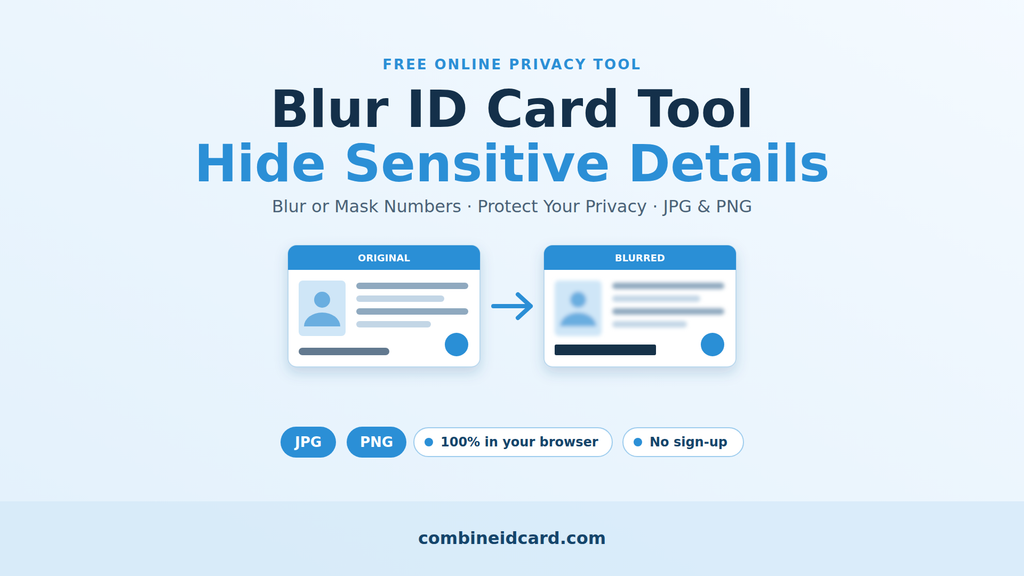
Different documents often need different adjustments before they are ready to share. You may need to hide a card number, cover an address, or remove other personal details from an image. Using an ID card redaction tool can help you prepare a copy for a specific purpose while keeping the information you choose to conceal less visible.
If you need to Blur ID Card Online or prepare other identity documents, you can explore our homepage for more useful tools. Our ID card privacy tools and online document editing tools help with everyday tasks such as hiding sensitive details, resizing card images, adding watermarks, and converting files into convenient formats.
What Does It Mean to Blur an ID Card Online?
An ID card may contain more personal information than you need to share. Blurring selected areas helps make those details less visible while keeping the rest of the image clear.
With Blur ID Card details Online, you can focus on specific details you want to conceal, such as:
- ID number: Make your identification number less visible before sharing a copy
- Date of birth: Hide your birth date when it is not needed by the recipient
- Home address: Reduce the visibility of your residential details
- Signature: Blur your signature when the recipient does not need to see it
An ID card blur tool helps you edit selected areas, while a blur sensitive information in ID card images approach can reduce unnecessary exposure of personal details. For stronger concealment, a black box Blur ID Card online tool may be more suitable than blur alone. Always check the final image carefully before sharing it.
Why Blur Sensitive Details on an ID Card?
An identity card contains personal information that may not be necessary for every situation. If you need to share a copy for a specific purpose, hiding unrelated details can help limit the information visible in the image. The right approach depends on what the recipient actually needs to see.
Use Blur ID Card Online when you want to make selected information less visible before sharing a copy. An ID card privacy tool can help you prepare an image for situations where certain details are not required, while a blur ID card number and address online workflow lets you focus on particular areas. For stronger concealment, consider permanent redaction rather than relying on blur alone.
How to Blur ID Card Details Online?
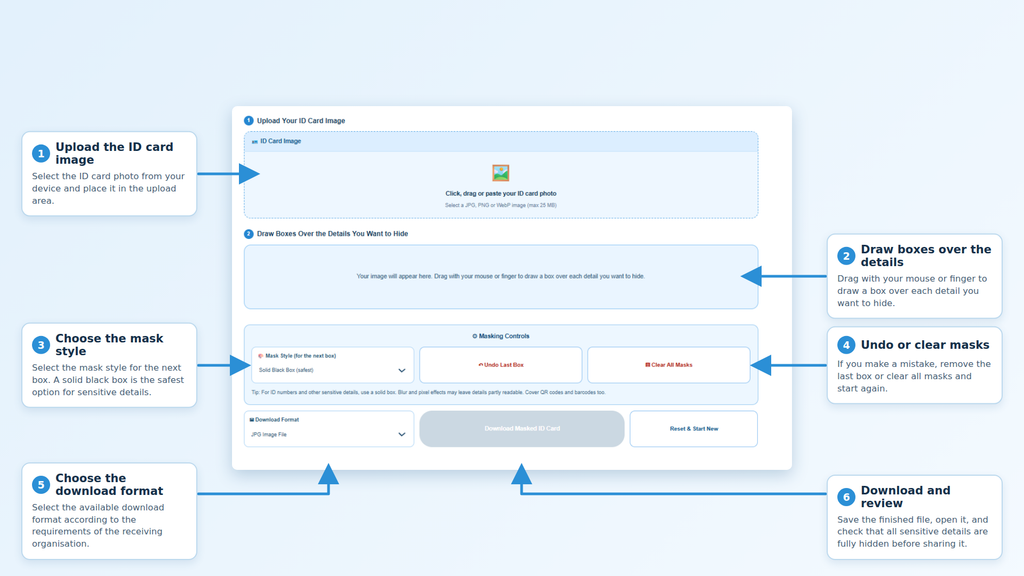
You do not always need advanced photo-editing software to conceal selected parts of an image. The process usually involves choosing the area you want to hide, applying an effect, and checking the result before saving the file.
To Blur ID Card Online, follow these general steps. The exact controls may vary depending on the tool you use.
- Upload the image: Select a clear picture of your ID card.
- Choose the area: Identify the number, address, date of birth, or other details you want to conceal.
- Apply the effect: Use the available blur, pixelation, or covering option.
- Review the result: Check that the selected information is no longer readable and that the rest of the card remains clear.
- Download the image: Save the edited copy in a supported format and open it to verify the final result.
An online ID card editor can help with basic image adjustments, while a blur selected areas of an ID card image online process is useful when you want to conceal only specific details. For information that must be completely hidden, use a suitable redaction method and verify the exported file before sharing it.
Which ID Card Details Can You Blur?
Depending on the purpose of the copy, you may want to conceal one or more of these details:
| Detail | Why you might hide it |
|---|---|
| ID or document number | When the full number is not required by the recipient |
| Date of birth | When this information is not needed for the task |
| Home address | When you do not need to disclose your residential details |
| Signature | When the signature is not relevant to the request |
| Personal reference numbers | When they are unnecessary for the intended use |
Always check the recipient’s requirements first. Some applications require every detail to remain visible, and an edited image may not be accepted.
Blur vs. Pixelate vs. Black Out: Which Is Better?
Different editing methods offer different levels of concealment. Choosing the right one depends on whether you want to soften the appearance of a detail or make it unreadable before sharing the image.
When you Blur ID Card Online, compare the available options before deciding which method suits your needs. An ID card redaction tool may offer more than one way to conceal information, and hide personal details on an ID card image can mean applying a blur, pixelation, or an opaque cover.
| Method | How it works | Best suited for | Important consideration |
|---|---|---|---|
| Blur | Softens the selected area | Making details less distinct | Strongly blurred text may still reveal information |
| Pixelation | Replaces fine details with visible blocks | Reducing the readability of selected areas | Weak pixelation may leave details recognizable |
| Solid black box | Covers the selected area with an opaque shape | Concealing information that must not be visible | Check that the exported image does not preserve the covered content in a separate editable layer |
| Crop | Removes part of the image | Excluding unnecessary edges or areas | Cropping may remove other useful information |
For sensitive information, an opaque cover or a proper redaction process is generally more dependable than a light blur. Always inspect the final exported image at full size.
How to Choose the Right Blur Strength When Blur ID Card Online
The effect should be strong enough to conceal the selected information without making the rest of the card unnecessarily difficult to read. The best setting depends on the size of the text, image resolution, and editing method.
Before you Blur ID Card Online, check whether the tool allows you to control the effect. An ID photo blur editor may offer adjustable strength, while a blur ID card details without affecting the whole image approach helps you keep the unselected areas clear.
| Setting | What to check |
|---|---|
| Blur strength | Make sure the original characters cannot be read from the edited image |
| Brush or selection size | Cover the complete detail, including nearby characters where necessary |
| Pixel size | Avoid blocks so small that the text remains recognizable |
| Cover opacity | If using a solid shape, ensure it fully hides the selected area |
| Preview quality | Inspect the saved image, not only the editor preview |
If the information remains readable, increase the concealment or use a more suitable redaction method. Do not rely on a small preview alone to judge whether sensitive details are hidden.
Can You Blur an ID Card Without Blurring the Whole Image?
Yes, when the editing tool supports selective blur or area-based redaction. This lets you target a particular number or address while keeping the remaining parts of the card clear.
With Blur ID Card Online, select only the areas you want to conceal rather than applying an effect to the entire picture. A selective ID card blur tool can help retain the useful parts of the image, while blur only the ID number on an ID card photo describes a common situation where a small portion needs editing.
Before downloading, inspect the card edges and nearby text to ensure that the selected area is fully covered and the remaining details are still readable.
Common Problems When You Blur ID Card Online
An edited image may not always look as expected. The issue could come from the original photo, the selected area, or the strength of the effect.
If you Blur ID Card Details Online and the result does not look right, use the following table to identify what to check. An ID image editing tool can help you make adjustments, but a fix unreadable or poorly blurred ID card details approach starts with reviewing the source image and exported result.
| Problem | Possible reason | What to try |
|---|---|---|
| The detail is still readable | The effect is too weak | Increase the blur or use an opaque redaction method |
| Nearby text is also blurred | The selected area is too large | Reduce the selection and apply the effect more carefully |
| The whole image looks blurry | A full-image effect was selected | Use a selective editing option if available |
| The image looks pixelated after download | The source or output resolution is low | Start with a clearer image and check the export settings |
| Part of the detail remains visible | The selection does not cover the full text | Expand the selected area and inspect the result again |
| The downloaded file looks different | The export may differ from the preview | Open the saved file at full size before sharing it |
Blur ID Card Online Before Sharing an ID Card
Before sharing an ID card image, take a moment to check which personal details the recipient actually needs. Use Blur ID Card Online to make unnecessary information less visible while keeping the required parts of your document clear.
Remember that a light blur may not fully protect sensitive numbers or text. If you need stronger privacy, consider covering those details with a solid redaction instead. Always review the final image before sending it, and keep an unedited copy stored securely in case you need it later.
Frequently Asked Questions
How can I blur ID card online for free?
Upload your ID card image, select the details to hide, and apply the blur effect. Review the image before downloading or sharing it.
How do I blur ID card details online without blurring the whole image?
To blur specific details, use a selective blur or brush tool that lets you edit only a chosen area. This is useful when you want to blur an ID card number and address online while keeping the card photo and other necessary information clear. Always confirm that the tool supports selective editing before using it.
Which Details Should I Blur When I Blur My ID Card Online?
Use Blur ID Card Online to hide unnecessary personal details, such as your ID number, date of birth, address, or signature. An ID card privacy tool can help protect your information. For stronger concealment, consider permanent redaction instead of blur alone.
Is blurring an ID card enough to protect my personal information?
Blurring makes sensitive details harder to read but may not hide them securely. For stronger protection, use permanent redaction and check the saved image carefully.
What is the difference between blurring and redacting an ID card?
Blurring softens the appearance of selected details, while redaction is intended to conceal information so it cannot be read. A blur effect may leave parts of letters or numbers recognizable, especially if the effect is weak. If you need to hide personal details on an ID card image securely, use a reliable redaction method and verify the final file.
Can I Blur an ID Card Online on My Mobile Phone?
Yes, you can Blur ID Card Online using a compatible mobile browser or editing app. Select the sensitive area, apply the blur effect, and check the result before sharing. You can blur ID card details on Android or iPhone without a computer.
Can I blur the front and back of an ID card separately?
Yes, you can edit the front and back separately if your tool supports it. Blur sensitive details such as ID numbers, addresses, and barcodes before sharing.
Does Blur ID Card Online Reduce Image Quality?
Blur ID Card Online without necessarily affecting the entire image. The result depends on the blur settings and image format. Use an ID card image editor to keep unaffected areas clear and maintain overall image quality.